 .
A new procedure is created.
.
A new procedure is created.Before you can employ System commands, you need to create a System Procedure. In this example, you will create a procedure named MeasureMyDmmVdc(dResult). The procedure will call two commands defined in the MyDMM driver.
Typically, your system will have procedures that route signals from the UUT to the measurement instrument. The signal will be routed using a switching instrument you may have in your system. Then the procedure will call functions to both set up the measurement and to take a measurement. Since your system contains only measurement instruments, only use the DMM to implement the procedure.
1. Open the system document view by double-clicking on the system shortcut from the Workspace window.
2. Right-click
on Procedures in the tree view
of the system document view and select Insert
Procedure Below .
A new procedure is created.
3. Open the Properties window and rename the procedure to MeasureMyDmmVdc.
4. Right-click
on the procedure variables view and select Insert
Parameter/Variable At  .
A new variable is inserted. Rename it to dResult.
.
A new variable is inserted. Rename it to dResult.
5. Right-click
on dResult. Select Properties
 and change the variable type to Double.
6. Select the Var parameter type from the Parameter combo box.
7. Type MyDMM followed by a space in the procedure code view. The command auto completion will display the commands available from the MyDMM driver as follows:
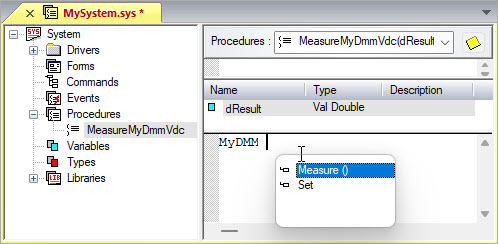
8. Press the down arrow key to select Set. Press ENTER and continue to select Function and VDC.
9. On the next line, use the cascading menu to insert the next command. Right-click on the beginning of the next line. Select Driver Command. Select MyDMM, and then select Measure(dResult) as shown here:
The command is inserted into the code view.
You have now finished writing the system procedure. Your next step is to create a command using the system procedure.
1. Select Commands from the tree view in the system document view. The Commands view displays in the right pane.
2. Right-click
on System and select Insert
Command Below
from the context menu. A new command item is created.
3. Rename the command item to Measure.
4. Right-click
on Measure and select Insert Command
Below from the context menu.
5. Rename the new command item to MyDMM.
6. Insert another command item below MyDMM and rename it to VDC.
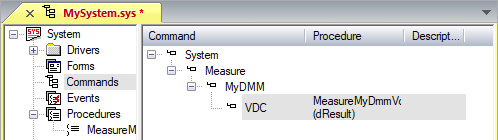
7. Select MeasureMyDmmVdc from the procedures list and click on the Attach Procedure button. The view should look as follows:
At this point, the system command System Measure MyDmm VDC(dResult) is ready. You can insert it into a code view within a procedure or a test using the techniques learned here by:
● Using the auto command completion.
● Using the Insert System Command from the Insert menu or from the context menu.
● Directly typing the command into the code view.
You can use the same techniques learned here to create program commands, which can be used in the program module.