Configuring the Driver in the System
A driver with a GPIB interface has been created. Now, configure the
driver to be used in your system.
To configure the driver in the system:
1. Select
the MyDMM driver shortcut  in the Tree View of the Workspace window.
Open the properties dialog box by either clicking the Properties
icon
in the Tree View of the Workspace window.
Open the properties dialog box by either clicking the Properties
icon  from the Standard toolbar,
or selecting Properties from the
View menu. The driver shortcut
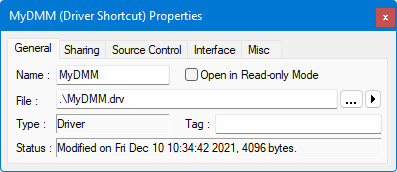
object properties dialog displays as below:
from the Standard toolbar,
or selecting Properties from the
View menu. The driver shortcut
object properties dialog displays as below:
2. Select
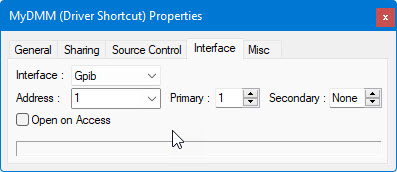
the Interface page.
3. Select
Gpib from the combo box list for
Interface.
4. Change
the address to 1. This indicates
that the driver is configured to use board address 1. Set the GPIB Primary address to 1
and the Secondary address to be
None (no secondary is used). Your
screen should now look like the following:
At this point, your driver is configured and ready to send and receive
data from the GPIB interface board to GPIB address 1 where your instrument
resides.