from the View menu. A dockable
window appears. By default, the Monitor is turned off.
from the View menu. A dockable
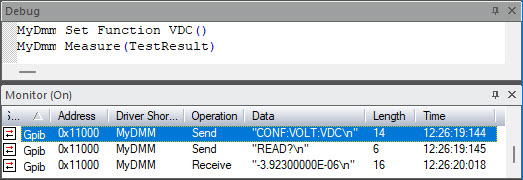
window appears. By default, the Monitor is turned off.Use the Monitor window to view the actual communication between ATEasy and the devices it controls. ATEasy displays data sent and received using GPIB, RS-232, VXI, USB, WinSock, File IO, and more.
1. Select
Monitor
from the View menu. A dockable
window appears. By default, the Monitor is turned off.
2. Right-click in the Monitor window and select Start Logging. This starts the monitor.
3. To
see how the monitor displays information, open the Debug Window from the
View menu and type MyDmm.SetFunction(2)
followed by a line with MyDMM.Mesure(TestResult)
. Select the two lines and select Doit!
 from the Debug menu. The monitor should display the following: