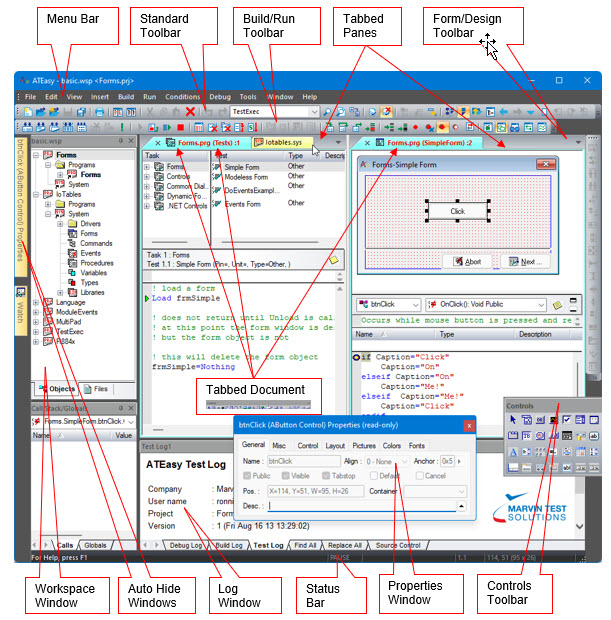
Developing ATEasy applications is done using the ATEasy Integrated Development Environment (IDE). The IDE contains all the tools required to create an application, run, debug, and then build in order to create Windows' executable files.
The following figure shows the main window of the IDE below with call-outs to the individual windows.
The following windows are displayed:
● Menu Bar – contains the IDE menus that includes:
File commands – used for file operation commands such as: Open, Save and Print. Also used for Microsoft Source Safe connectivity such as Check-In/Out and more.
Edit commands – used for editing operations such as: Undo, Redo, Cut, Copy, Paste, Delete, Find and Replace.
View commands – used for changing the way you view documents, and to show or hide the workspace built-in windows such as: Workspace, Variables, Properties, Log, and debug windows such as Call Stack/Globals, Watch, Debug, Threads and Monitor. The built-in windows are dockable, that is, they can be docked to either side of the main window making them always visible.
Insert commands – used to insert code commands and statements to the code editor and to insert object such as variables, procedures, forms, and more.
Build commands – used to perform syntax checking and to build the application to an executable file.
Run commands – used to Start running, Reset, Abort, and to control the sequence of test and task execution when running applications within the ATEasy development environment.
Conditions commands - used to set different run modes such as Pause On Task/Test Failure and to set what to log to the test log: Log Failures Only, etc.
Debug commands – used to perform source level debugging commands such as Step Into, Step Over, Toggle Breakpoint and to debug small portions of your application with commands such as Doit!, and Taskit!
Tools commands – used to customize the IDE keyboards commands, menus, and toolbars, to set the IDE options such as directories, and to manage users, password, and access rights.
Help commands – provide commands to search and open the on-line help, check for updates, and setup the ATEasy license
The IDE's most common menu commands can also be displayed using the context menu, invoked by using the right mouse button or by using fully customizable keyboard shortcuts.
● Toolbars – including the Standard toolbar used for common commands, the Build/Run toolbar used for common build and run commands, the Form Design toolbar used for form layout operations, and the Controls toolbar used for inserting controls to a form.
● Status bar – contains multiples panes displaying the status of the application when running (for example, Run or Paused) or other editing properties such as: current line and column, size of the selected control on a form, and more.
● The Workspace window – displays the contents of the current workspace file in a tree-like view. This window contains two tabs: Objects and Files. The Objects tree view (shown here) displays all files objects opened by the IDE: project files, modules such as drivers, system or programs, and their submodules such as procedures, and variables. The Files Tab is used to display the current workspace project and module files without showing the files sub modules. The user can perform editing commands on the objects displayed in the tree. Double-clicking on an object/file opens the document view used to display and edit the object/file.
● The Properties windows – displays the properties of the currently selected object. Clicking on an object in any of the ATEasy windows can set the currently selected object. There are two properties windows: Properties Window and Properties Grid Window. The Properties Window contains pages, each of which displays a partial list of the object properties, it is used to display and change all object types properties except from .Net control objects where only some of the properties are displayed. The Properties Grid Window (v10) displays the properties and their values in a grid and is used only to display or change properties of ATEasy controls or .Net controls, the user may change the object properties by changing the values displayed in this window.
● The Log window – contains five log tabs.
The Test Log displays the test results when the application is running. The test log displays a report automatically generated by ATEasy when a test program is running. It can display the results in Text format or HTML format, which provides more formatting and options.
The Build Log displays the build progress, compiler errors, and file and library loading errors during workspace file loading (v10).
The Debug Log displays trace statement output when the application is running.
The Find All tab displays results of the finding text using the Find dialog. Each result is displayed as a link allowing you to click and see the found text (v9).
The Replace All tab displays results of the replaced text using the Replace dialog. Each result is displayed as a link allowing you to click and see the found text (v9).
● Debug windows – used to display debugging information about the running application. Includes the following windows:
Call Stack/Globals window – displays the variables values of modules variables and procedures variables. When the application pauses, the user can change the values of variables.
Watch window – displays expressions that the user input to this window. When the application pauses, the expression is evaluated, and its value is displayed in the window.
Debug window – used to type programming statements. When the application pauses, the user can run the code to evaluate expressions and to perform certain operations at run-time for debugging purposes.
Monitor window – used to display communication data between the application and a device (for example, an instrument) through an ATEasy interface (for example, GPIB).
Threads window – used to display all of current ATEasy threads running. For each thread, you can view stack, local variables, and current location.
● Tabbed Document Windows inside a Tabbed Pane – displays a module document. The window is normally divided to a Tree and Object views. The Tree view shows the module objects while the object view shows the current selected tree object. In this example the SimpleForm is shown with no Tree view). The splitter line between the tree and object can be also dragged for sizing. Clicking on the Tab will activate the window. You can also split the main window by dragging the tab and dropping it to the right or left inside the main window to create another tabbed pane that can host additional tabbed documents, allowing you to divide the main area to show more than one document at the same time.
● Dockable and Auto Hide Windows – the Log, Workspace, Debug windows, Properties Grid, and Monitor windows can be displayed in several display modes: Float displayed a standalone window anywhere on the desktop, Tabbed Document displayed in the main window as a document view or Docked to the sides of the main window. Changing the display mode for these windows can be done by right-clicking on the caption. When a window is docked it can also be set to Auto Hide preserving the main window space by hiding when not needed and displayed when the mouse cursor is above the window. Changing the Auto Hide can be done by clicking on the pin image on the caption of these windows. Docked window can also be dragged to another pane by dragging their caption using the mouse, while dragging the caption, layout guidelines will show with the current layout and the suggested new placement for new location for the window, dropping the mouse of one of these boxes will place the window on the suggested location.
Over time you will find that the IDE is consistent and object-oriented and is geared for rapid application development. This provides you with a tool that is fast, intuitive, and easy-to-use to create ATEasy applications.