 from the context
menu. A new variable is created and displayed in the view. An edit box
displays allowing you to rename the variable name.
from the context
menu. A new variable is created and displayed in the view. An edit box
displays allowing you to rename the variable name.For ATEasy to recognize and use a variable, it must be declared first. When declaring a variable, you can determine its name and data type as well as give it a description for documentation purposes. Variables can be declared in the following areas:
● Program, System and Driver modules Variables - These are global variables that are normally accessed only from the module where they are declared. If a Driver or a System variable is declared as public the variable can be accessed from another module as well.
● Test Variables - these are test local variables for use only within the test. When the test starts, these variables are created and initialized, and when the test ends the variables is destroyed ATEasy 2024 (v13).
● Procedure Variables - these are procedure local variables, they are created and initialized when the procedure is called and destroyed when the procedure is returned. Procedure also has parameters variables that are used to pass data to/from the procedure.
● Form Variables- created when the form is loaded and destroyed when the form object is deleted.
1. Double click on the Variables submodule below MyProgram in the Workspace window. A Variables view will open displaying three columns: Name, Type and Description.
2. Right click
on the view and select Insert Variable
At from the context
menu. A new variable is created and displayed in the view. An edit box
displays allowing you to rename the variable name.
3. Type the name: i.
4. Right click
on the i variable and select Insert Variable After  . A new variable
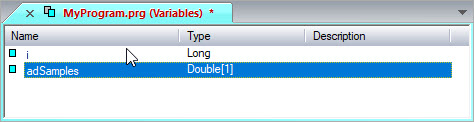
is inserted after i. Rename it by typing adSamples.
. A new variable
is inserted after i. Rename it by typing adSamples.
Your screen should now look like the following:
Note: You can declare variables in the Test in the Test Variables View. Declaring in the program allows using them in more than one test and retain their values throughout the life of the program.