 on the Controls toolbar. Place your
mouse pointer at the upper left side of the form. Click and drag a rectangle
that is approximately two thirds of the size of your form.
on the Controls toolbar. Place your
mouse pointer at the upper left side of the form. Click and drag a rectangle
that is approximately two thirds of the size of your form.In your example, you will be adding a chart control on the left and two buttons on the upper right of your form.
1. Click
the AChart control on the Controls toolbar. Place your
mouse pointer at the upper left side of the form. Click and drag a rectangle
that is approximately two thirds of the size of your form.
2. Click
the AButton control  on the Controls toolbar. Place your
mouse pointer at the upper right side of the form. Click and drag a rectangle.
When you let the mouse up, the button is labeled btn1.
on the Controls toolbar. Place your
mouse pointer at the upper right side of the form. Click and drag a rectangle.
When you let the mouse up, the button is labeled btn1.
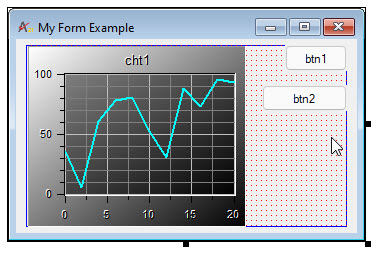
3. Copy the button. To copy, click on the button while holding down the CTRL key. Drag the button to a position immediately below the first button. When you are finished, your form will look similar to the following:
You now have all the controls you need and it's time to set the visual appearance of the Form. Next, you will need to place the controls and space them evenly. You also need to make the button height and width to be the same.
1. Click on btn1 to select the control. You can move the control using the keyboard's arrow keys. This is more precise than moving the control by dragging it with the mouse. You can also size the control by dragging the selection handles or using the keyboard by pressing the SHIFT key down and pressing the arrow keys.
2. Once
btn1 is in the correct position, you can make btn2
align equal to the left edge of btn1.
To do that you must select multiple controls. Click on btn2
to select the control, press the SHIFT
key, and then click on btn1. Notice
that the two controls are now selected. The last control that you select
is called the pivot control. Click on the Align
Left command  from the Form Design toolbar or
from the Arrange menu under the
Edit menu. Notice that btn2 is
now aligned equal to the left edge of btn1.
from the Form Design toolbar or
from the Arrange menu under the
Edit menu. Notice that btn2 is
now aligned equal to the left edge of btn1.
3. While
the two buttons are still selected, make btn2 have the same width and
height of btn1. Click on the Make Same
Width  command and then
click on the Make Same Height
command and then
click on the Make Same Height
 command (alternatively, you can select the Make
Same Width and Height
command (alternatively, you can select the Make
Same Width and Height  command). At this point
btn1 and btn2 are aligned and are the same size.
command). At this point
btn1 and btn2 are aligned and are the same size.
4. Next,
make the chart and top button align to the top edge. Using the same technique
as step two, select the chart (cht1).
Holding the SHIFT key down, select
btn1. Click the Align
Top  command. Both controls are aligned to the
top.
command. Both controls are aligned to the
top.