. The properties window
opens.
. The properties window
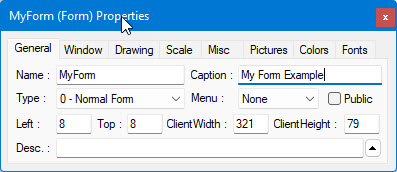
opens.The form's properties window has several pages defining the different aspects of the form. The most important elements are found on the General page. Here, the Form Name and type are defined as well as the form's caption, default menu bar, size and whether the form is public (that is, can be used by other modules)
Additional Form properties pages include:
● Window – contains properties to determine the border style, its initial position, state and other window properties.
● Drawing – contains the default drawing attributes such as pen, fill style, draw width and more. This is used when using the drawing form procedures to draw on the form.
● Scale – contains the scale mode. The default scale mode is pixels. Scale mode is used to specify different units for the coordinate system.
● Misc. – contains help files support for a form.
● Pictures – allows you to set a background picture for the form.
● Colors – contains properties to set the foreground and background colors of the form. The foreground color is used when drawing text and lines on the form. The background color is used to paint the client area.
● Fonts – contains a font selection that is used as the default font for controls. In addition, the font is used when drawing text on the form.
As you can see, the form contains many properties. The ATEasy User's Guide and the Reference Guide cover them in more detail.
1. Open the MyForm Properties window by clicking the
right mouse button on MyForm and
selecting Properties . The properties window
opens.
2. Rename the form to MyForm.
3. Change the caption to My Form Example. The caption is displayedd in the title bar of the form. The properties window should look like the following: