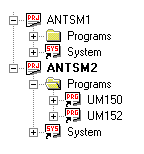
● Active project – the workspace may contain multiple projects. It is important to understand which project is active, since the Build, Run, and Debug commands apply to the active project. The workspace window shows the active project in boldface. You can set the active project by selecting the project to make active and select the Set Active Project from the File menu.
ANTSM1 and ANTM2 are projects, ANTTM2 is the Active Project.
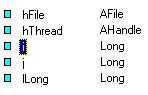
● Selected Object – objects are displayed in the IDE windows with their image representing their type and name. Clicking on an object such as a procedure or a variable will make that object the selected object.
● The selected object properties such as type or name are displayed in the Properties Window.
As shown here the variable i is the selected object.
Edit commands such as Cut or Paste work only on the selected object.
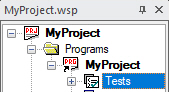
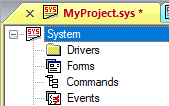
● Active Document – The active document is the document or file where the selected object resides. File Operations such as the Save command apply to the active document. The active document tab shows its file name in bold/red.
● The Active Documents shown here are MyProgram, (MyProgram.prg) program, and the system, MySystem.sys. Note that even though the workspace document is the workspace file, the active document is the program, since it owns Tests, which is the selected object.
● Dockable
Windows – · Dockable windows can
be docked to any side of the IDE main window or to another dockable
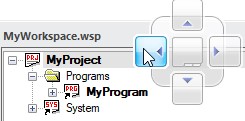
window by dragging their title bar and
dropping over the guideline boxes displayed while dragging the
title.
Dockable windows in ATEasy are the built-in windows: Workspace,
Log, Variables, and all the debug windows (for example, Watch
window). Dockable windows can be in one of the three states: Docked,
Float, and Tabbed document.
You can see the differences between
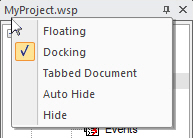
the state of these windows by right-clicking on the title bar.
The
dockable workspace window shown here is in docked
state.
Guidelines
boxes displayed while dragging the window
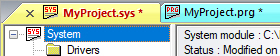
● Tabbed Document Windows – The active window tab shows the file name in red bold, x is also displayed and used to close used to close the document, an * is displayed if the document was modified. Tabbed Document Window can be activated by clicking on the window tab.
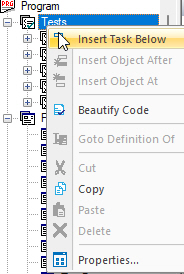
● Tree views – Both document views and the workspace window contain tree views. The tree view displays objects in a tree control, each with an icon representing its name. Additionally, a plus/minus sign indicates if the object can be expanded or collapsed. You can perform many editing operations on objects via the tree view such as: Rename (F2), Cut, Copy, Paste, Drag and Drop, or other operations from the Edit and Insert menus. Clicking on the object with the right mouse button invokes the object context menu as shown here.
● Description View and Description Button – Most objects views allow you to enter description text (notes) to describe and document the object.
The button can be pressed when the view is visible or empty when no description text was entered.