 command from the View menu or
from the Standard toolbar. This log is automatically generated when the
program runs.
command from the View menu or
from the Standard toolbar. This log is automatically generated when the
program runs.The output of any test program is the test results. This data is essential
information required to determine if the Unit Under Test has passed all
the tests and if not, what the failures were. ATEasy
provides this (and other) information through the Log Window as shown
below. The Log Window is a dockable window with three tabs and can be
shown by selecting the Log Window
command from the View menu or
from the Standard toolbar. This log is automatically generated when the
program runs.
Before you go any further, click the docking button to cycle through the positions of the log window and switch to MDI Child Window as shown here:
There are six tabs in the Log Window:
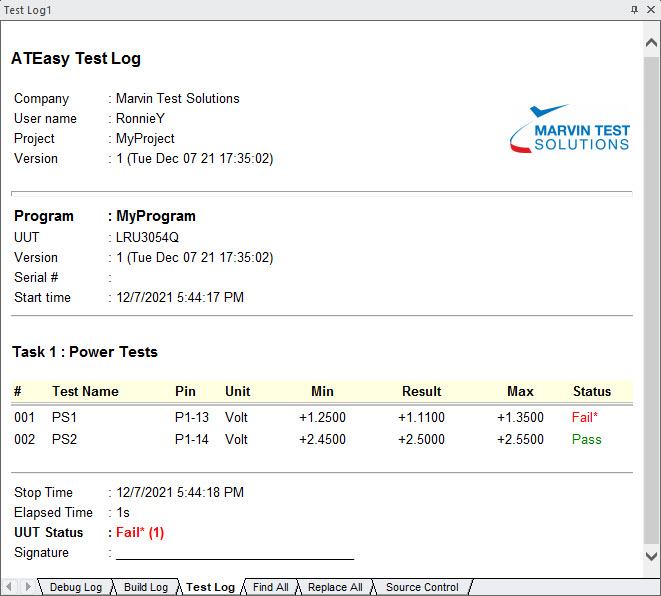
● The Test Log
displays the test results generated by ATEasy automatically when you run
a program. The test results include some information about your program:
for each task that was running, its number and name are output; and for
each test its number, name, pin, unit, test type requirements such as
Min or Max, test result, and the test status are output. The end of the
test log report contains summary information including the status of the
UUT. This is determined by ATEasy from the status of the tests you ran.
When debugging the application, ATEasy appends a description of the actions
taken by the user, such as abort, or skip test, to the test log. This
can be later used to track and replicate user actions to analyze and debug
the UUT. You can select the  Log Failures
Only from the Conditions menu if you wish the log to display only the
failed tests results.
Log Failures
Only from the Conditions menu if you wish the log to display only the
failed tests results.
The format and the content of the test log can be customized. For example: you can set the test log to display in HTML format instead of text to provide more readable output including various fonts, color, graphics, and more. You can include an image showing a chart of data that the application acquired. You can disable ATEasy from outputting anything to the log and use the print statement or other log functions from the internal library to output any data you wish.
● The Debug Log page displays information printed from programs for debug purposes. The output to this window is usually done using the trace statement.
● The Build Log tab displays ATEasy compilation information including any actions taken by ATEasy (such as Compiling, etc.) and compiler error and warning as links (v8) allowing you to click on the error or warning to locate the position of the error in your application. In v10, the build log also used to display loading error when loading a workspace or adding a file to the workspace.
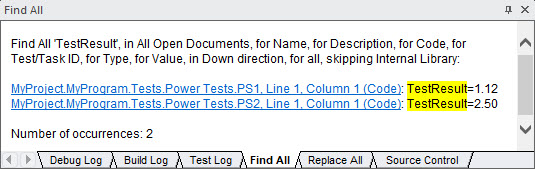
● The Find
All tab (v9)
displays results of the Find
dialog Find All. The window displays a list of locations where the
text searched was found as shown here:
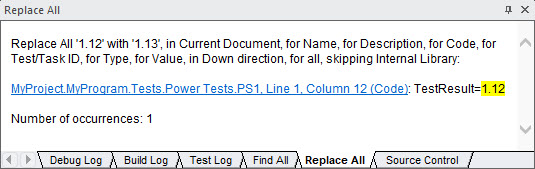
● The Replace
All tab (v9)
displays results of the Replace
dialog Replace All button. The window displays a list of locations
where the text searched was found and replaced as shown here:
● The Source Control tab (v9) displays information that ATEasy sends and receives from the source control provider when using source control commands to Add/Check In/Out, Compare and more. This tab is optional and will show when the option to show it is checked from the Options dialog.