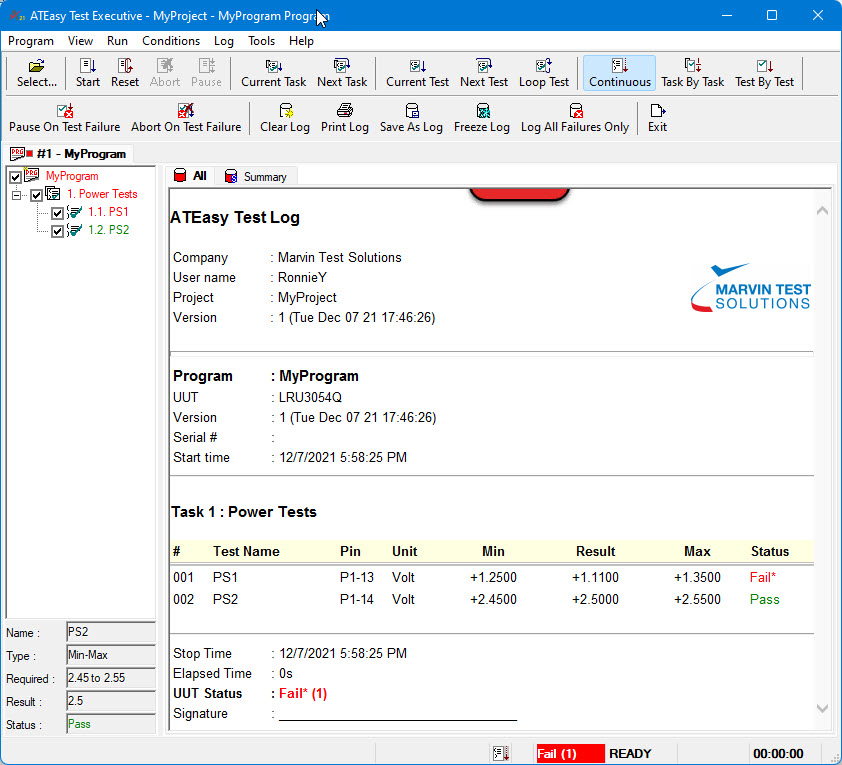
The test executive main window is an ATEasy Form displayed by the test executive driver. The main contains a menu, toolbar, status bar and a Log control to display the test results of the running program. The test executive provides support to different execution models of your project programs, these include sequential mode, parallel mode and mixed mode. These modes are mainly used when executing multiple UUTs and test programs at the same time (parallel mode) or in sequence (sequential mode).
1. Select Start from the test executive Run menu. MyProgram will run.
Notice the test log now displays in HTML format as shown below:
The Test Executive main window is divided into three panes: the Tests pane, the Test Properties pane, and the Log pane. The Tests pane displays the current program or profile that is a subset of your application tests in a tree view. Each node in the tree has a checkbox that allows you to includes the test or exclude it from running. The Test Properties pane display the current test properties including its name, its type the required values, result and its status. The Log pane displays the test log report showing the test log report in either text or HTML format. In HTML format, clicking on the red button will display the log options created by a log template file, allowing you to filter the test results based on test status, how close the results to the Min or Max values and whether to show a bar chart showing the result location within the test limits.
At run-time when the test executive executes a test, the test node is highlighted and colored according to the test status (red for fail, green for pass, black for none), the test properties pane displays the test properties and result, and the test log is appended with the test’s result.
The test executive log report and the test executive window and features are fully customizable from the test executive driver's commands or by using the View menu or Options dialog. In addition, if the profile driver (profile.drv) is also included in the system, additional menu items will show to allow you to create, select and run test profile using the profile editor.
If you browse through the test executive menus, you will see that the test executive has commands allowing you to select which program to run (Program Menu). The Run and Conditions menus contain commands like the IDE Run menu, and the Log menu lets you save, clear, or print your test log.
2. Choose Exit from the Program menu. This exit the application and returns to the IDE.
You may want to browse through the test executive driver submodules to see how this driver implements the user interface displayed through the test executive window. Look under Forms to see the form used to create the main window of the test executive. Another interesting code resides under the test executive Events submodules. This is where the driver controls the test programs' behavior and implements some Run and Conditions statements. We will cover these topics in later chapters.
You have now created and tested a very simple application. Adding the test executive driver to the application allows you to provide a test executive to your application quickly.