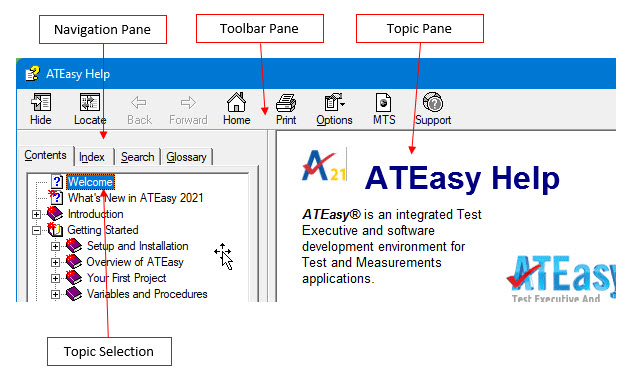
The Help window contains three window panes: a toolbar pane, a navigation pane, and a topic pane.
The Toolbar pane provides controls for the Help window: Hide/Show, Locate, Back, Home, Print, and Options. Clicking on Hide hides the navigations pane and replaces the Hide button with a Show button. Clicking on Show displays the navigation pane and replaces the Show button with a Hide button. Clicking on Locate shows you the topic in the table of contents that is displayed in the Topic pane. Clicking on Home displays the ATEasy Welcome screen.
The Navigation pane provides three ways of accessing information. The Contents tab displays a table of contents. The Index tab displays an index, and the Search tab displays a list of all the words used in the Help file.
The Topic pane displays the Help topic information.
There are several ways to access topic Help from within ATEasy. Click on the Help menu to directly access the table of contents or index and context-sensitive Help. The purpose of context-sensitive Help is to provide Help related to that action or portion of the program that you are using. For example, assume you are entering code for a procedure and you have typed in the following text:

You realize that you are not sure how to use the if command, so you hi-light the word "if" and then press function key 1 (F1) for help. The Help system is started, the Contents tab is selected and the topic of If statement will be displayed.
The table of contents allow you to access information by topic title. Related topics are grouped together in the form of books, chapters, and topics.
|
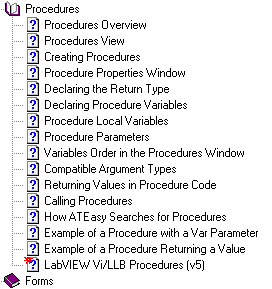
Selecting the chapter titled Procedures in the User's Guide book displays all the related topics for the subject of procedures. In many cases, the topics provide additional links to other subjects. |
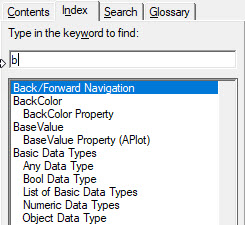
The index is often the fastest way to find information in the Help system when you know a word in the topic you are researching. For example, type the first letter of the word or phrase you are searching for (for example, the letter b). The index entries are positioned so that the closest match is at the top of the display.
Now type the second letter (r). The index display list is again positioned so that the words starting with "br" are at the top of the display.
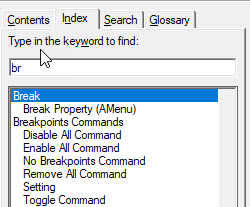
Now you can double-click on the index entry to display the Help topic.
A word search requires that you type a complete word, then click on the List Topics button.
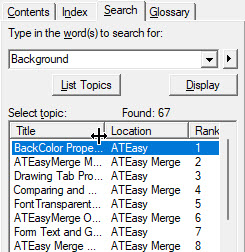
A list of topics is displayed that contains the word you typed in (in this example, "Background"). Double-click on the topic title to view the topic.
While using the online Help system, you can print topics and information right from the HTML Help viewer. The available print options are determined by the version of Internet Explorer and Microsoft HTML Help viewer installed on your system.
To print a single topic:
Click Print.
Select Print the selected topic and click OK.
To print all topics in a selected book:
Click Print.
Select Print the selected heading and all subtopics and click OK.