Variables have many characteristics that are important to understand when building ATEasy applications. This section defines the characteristics (properties) of ATEasy variables and user-defined data types.
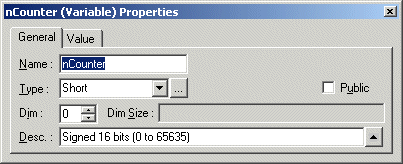
To display the properties of the nCounter variable, you can either double-click on the icon to the left of the nCounter variable; or you can select (highlight) nCounter and then select Properties from the View menu or click on the Properties tool from the standard toolbar.
The following figure shows an example of the Variable Properties window. The programmable properties of a variable include name, type, dimension (Dim), dimension size (Dim Size), description (Desc), and Public (not shown, hidden behind the Type list).
The following table describes the General properties on the Variable Properties window. For a description of the properties on the Value page, see Variable Properties (Value Page).
|
Property |
Description |
|
Name |
See Variable Naming Conventions for additional information on naming variables or user-defined data types. |
|
Type |
Use the drop-down selector to display the list of data types or type the data type name. |
|
Browse |
Browse for any previously defined data type. Data types defined in other modules must be public to be visible. |
|
Dim |
Specify the dimensional size. Zero = not dimensioned, one = one dimensional, two = two dimensional, etc., up through 16 dimensions. |
|
Dim Size |
Specify the size of each dimension. When Dim is zero, Dim size cannot be accessed. |
|
Description |
Your description of the variable or user-defined data type. |
|
Public |
See Variable Scope further in this section |
Scope can be thought of as visibility (which module can see a variable). The scope of a variable is limited to the module in which it is declared unless you take a specific action to declare the variable as global (public). Declaring a variable as local or public is done from the property window.
Lifetime can be thought of as duration. The period of time a variable exists defines its lifetime. A variable's lifetime varies depending on the module it belongs to.
|
Module/Submodule |
Lifetime |
|
Program |
As long as the program is active (running). When multiple programs exist within a project, only one program can be active at any one time. |
|
System & Driver |
As long as the application is running. |
|
Form |
As long as the form is displayed. |
Variables and user-defined data types may be accessed (from ATEasy modules) by name. It is possible to have multiple variables with the same name, for example, driver1 and driver2 could both have a variable named Time_samples. To ensure you access the correct variable, use a dot notation (that is, driver1.Time_samples or driver2.Time_samples).
Our next step would be to change the properties of our three variables. We will start with nCounter as its properties are already displayed. Most properties of nCounter are already defined. Let us add "Loop Counter" as the description (Desc) and continue with afNumbers (do so by clicking once on afNumbers in the Variables View).
The prefix of afNumbers is "af" with "a" representing an array and "f" representing a Float variable. Select Float from the Type selection list and change the Dim to 1. Dim Size now displays [1]. Change the size to 11 by typing over the "1" and then add "List of Numbers" in the Description field.
Our last step would be to select fAverage (by clicking on it once) and then changing the Type to Float and adding "Average of n Numbers" to the description field.
For information on how to create and use variables, see About Variables.