 option of the Tools menu.
After ATEasy is installed, three default, prototype users are set up:
The Administrator role
The Author role
Tester role
With appropriate changes to the passwords, these default users can be used as examples.
However, if you want to give out accounts on an individual basis, ATEasy provides a complete set of controls to do so. Individual accounts have considerable advantages:
They allow you to control individuals' rights and privileges exactly.
They allow you to accurately document the history of a program, system, or driver's development via the Versions Dialog.
The Administrator can use the Users Dialog to add, delete, or modify accounts for individual users. You can access the User Dialog from the Users option of the Tools menu.
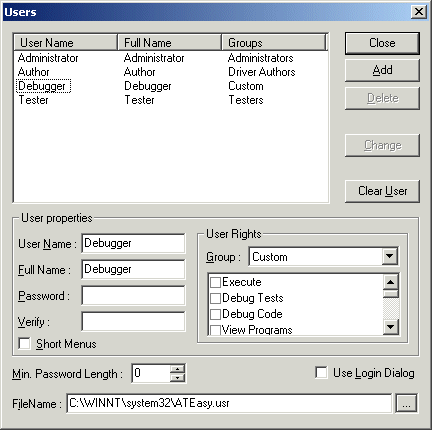
Fill out the user properties in the User Properties group box. The User Name and Full Name must be filled in in order for the Add button to be activated. If you have set the minimum password length to be greater than zero, a password of the minimum length must be entered as well.
Select a user group/privileges level using the Group combo box in the User Rights group box.
Click the Add button
Select an existing user in the users list.
Click the Delete button.
Select an existing user in the users list.
Change the user's properties in the User Properties and User Rights group boxes,
Click the Change button.
By default the users file is located under the Windows System folder. You can modify its path so that ATEasy will use a shared file (typically shared by several workstations in a Network File server, protected by user access from deletion).
Enter the file name or select Browse button to locate a users file.