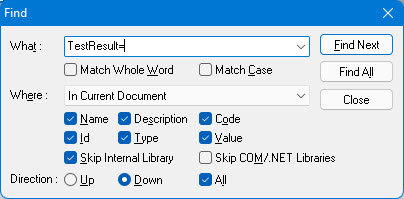
Use the Find dialog box to search for text in ATEasy. The Find dialog box is modeless, meaning that it allows you to perform operations in the IDE while the dialog box is open.
To find text:
1. From
the Edit menu, select Find. ATEasy displays
the Find dialog box:
2. In the What edit box, enter the text that you want to find. You can enter Escape Sequence String. If you previously entered the find text, click the drop-down box to select the text.
3. To find only whole words that match the text rather than partial words, select Match Whole Word (a word is defined as a consecutive sequence of alphanumeric or underscore characters), To find only text that match the case of the find text, select Match case.
4. Where list. Select the scope of the search. Select one of the following:
In Active View finds text in the active view (where the window focus is). You can use this option to search inside Log, Debug, Monitor (v10), and Watch (v10) windows.
In Current Document finds text in the active document (the document where the window focus is).
In Current Project finds text in the current project (the project where the current document reside).
In All Open Documents finds text in all the workspace documents.
5. Select one or more of the following areas in which to find the text:
Name finds text in the names of objects.
Description finds text in the descriptions of objects.
Code finds text in task, test, and procedure code.
Id finds the task or test id (v9).
Type finds the procedure or variable type (v9).
Value finds the initial value of a variable (v9).
When Skip Internal Library is checked, the search will skip the Internal library - skip every items in the Internal library, causing the search faster.
6. Select
the Direction option to specify
in which direction to search. Down
searches down the page and forward across the next pages. Up
searches up the page and backwards through previous pages.
If All is checked, then after the
search reached the end of 'where' you specified above, it will continue
to search again from the beginning/end of 'where'.
7. To
begin the find process, click Find Next.
ATEasy highlights
the found text and, if it is not visible, displays the document in which
the text is located. If it cannot find the text, ATEasy
informs you with a message in the status bar. If you prefer to find all
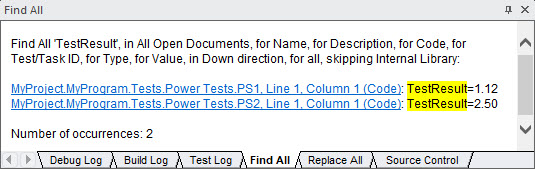
matching text, click Find All.
Find All will display the found
text links in the Find All Log Window
as shown here (v9):
8. When you are finished, click Close.