You can customize the keyboard combinations used to run ATEasy commands:
1. Display the Customize dialog box as explained in Customizing the Environment.
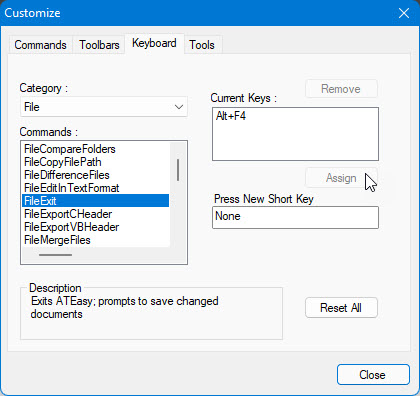
2. Click the Keyboard tab to display the following:
3. Select a category from the Category list.
4. From the Commands list, select a command for which you want to define a key. Note the description of the command that appears in the Description box to verify that this is the command you want.
5. Click the Current keys box to select it.
6. Click the Press new short key box to select it. Press the keys on the keyboard that can be used to activate a command. The names of the keys you pressed appears in the Press New Short Key box.
7. Do one of the following:
To assign this key combination to the selected command, click the Assign button. The key names appear in the Current Keys box.
To remove a key combination, click on it in the Current Keys box. Then, click the Remove button to delete the key combination.
To reset all key combinations to their default settings, click the Reset All button.
8. When you are finished, click Close to close the dialog box.