To show or hide Toolbars:
1. Display the Customize dialog box as explained in Customizing the Environment.
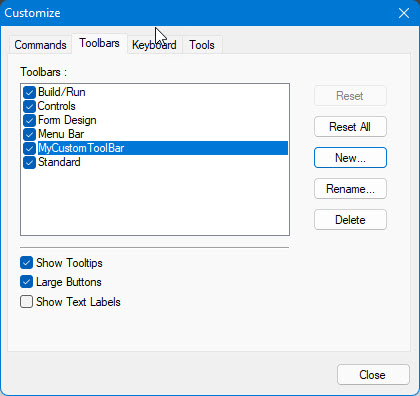
2. Click the Toolbars tab to display the following:
Note that the Controls and Form Design options appear only when you edit a form. For more information, see About Adding Controls. To show a toolbar, click a checkmark by the Toolbar name.
3. To hide a toolbar, click a checkbox by the Toolbar name so that the checkbox is blank.
4. Click the Close button to save your changes and close the dialog box.
You can also show or hide a Toolbar through the Toolbar dialog as explained in Toolbars Dialog.