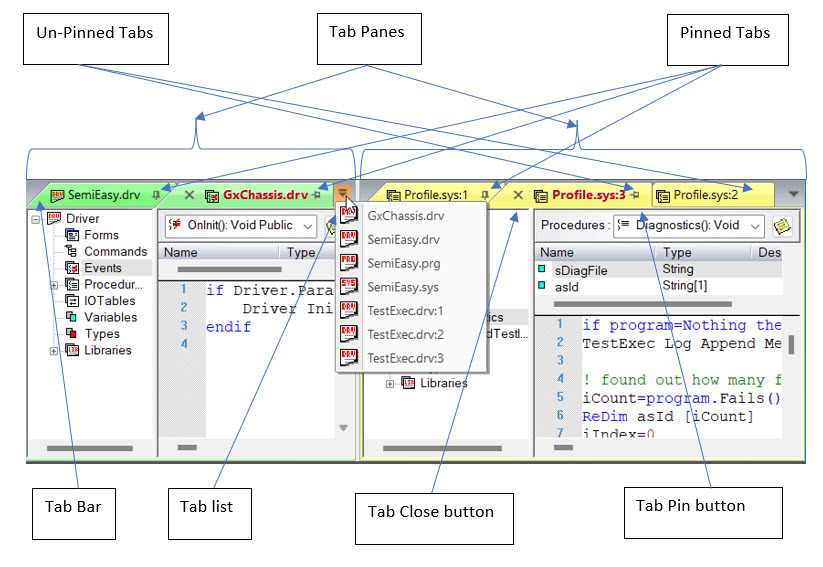
More than one Tabbed Document windows can appear in the Client area at the same time. The Tabbed Document are hosted on a Tabbed Pane. To create another tabbed pane drag the tab to another location in the client area as shown here:
Each tabbed document pane will show a drop list on the right corner, showing all the tabs that belong to this tabbed pane. Closing all the tabs in that pane will close the pane.
You can also rearrange the order of tabs in the pane by dragging caption he tab to another location in the tabbed pane.
Active Tab: The IDE menu command always applies to the active tab and to its active view The Active Tab shows with a red caption. To activate a tab, click on the tab. To activate a View inside the Active Tab,, click on the control inside the tab frame, the focus will move to that control. The IDE menu commands and shortcut keys always work on the Active View.
To close the tab simply click on the Close button (X). The X button is always shows on the Active Tab, however if you move the mouse above any tab, the Close button will show allowing you to close the tab without activating it.
Pinned Tabs: A tab can have a pin or unpinned state. When pinned, the tabs always shows in the same location at the beginning of the tabs bar allowing you to fix the tab position and easily locate it. Tabbed pins always shows a pinned image at the tab caption, other tabs do not show the pin state in the tab caption. Pinned tabs always shows in the beginning of the tabbed bar. To change the pinned state of a tab, move the mouse over the tab caption, t pin state image will show, click on it to change the state.
To more easily view these multiple windows, you can arrange them with options from the Windows menu as follows:
You can also arrange windows through a dialog box as explained in Windows Dialog.
For information on selecting or moving through specific windows, see Activating a Specific Window.