To display these options, select Options from the Tools menu and select the Workspace tab.
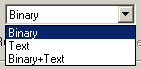
Select ATEasy default file format : Binary (default), Text, or Binary+Text. Both Binary and Text are selected, files will be saved in both formats - one for Binary and one for Text, however binary files are opened/loaded for File\Open. Default: Binary.
Select to save all modified Workspace files before running a program. Default: Unchecked.
Select so that ATEasy prompts you before it saves files. Default: Unchecked.
Check to activate ATEasy Auto Recover feature. This feature will cause modified files to be saved every specified minutes. When the workspace is loaded after a system or any other failure, ATEasy will notify you that a newer unsaved file exist and will ask you if you want to restore (replacing the original file) or to save the file to a new location. Default: Checked every 10 minutes.
This option can be used to save a backup file when saving a file with new changes. Files that are backed up are project, program, system or a driver.
Backup files location can be specified to the original folder (To the same folder option) or to any other folder using Path Variables. See Path Variables topic for more information about how to use path variables. Here are a few examples:
● $(temp)\ATEasyBackup - backup all files to %temp%\ATEasyBackup folder (usually C:\Users\username\AppData\Local\Temp\ATEasyBackup)
● $(ProjectDir) - backup all files to the file's project folder
● $(ProjectDir) - backup all files to the file's project sub-folder named ATEasyBackup
Files are backed up using the original file name followed by the date and time were the backup created. the File modified fields is left as teh original file modified time. Here are examples for a program called OnError1.prg backed up twice after two saves on December 9 2022::
