Clicking on the StatusBar icon  in the Form Design Toolbar
Dragging within the Form Design area.
ATEasy's AStatusBar control can be used in a form to notify the user of changing conditions in the application. The status bar usually resides at the bottom of a form window, and can contain one or more panes. Panes are separate, individually addressable areas which can contain messages, keyboard status indicators, or even a clock.
You create an AStatusBar control by:
Clicking on the StatusBar icon in the Form Design Toolbar
Dragging within the Form Design area.
A blank AStatusBar control will automatically be added to the bottom of your form.
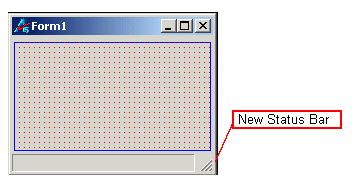
At design time, you can create new panes in the status bar using the "Panes" tab of the AStatusBar properties page.
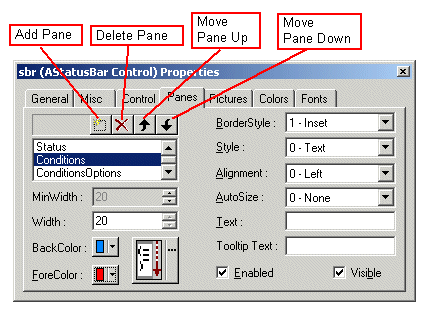
To add panes to the AStatusBar control:
Go to the Panes tab of the control's properties page:
Click the topmost empty space in the left-hand listbox.
Click the Add Pane button.
Type the name you would like the pane to be known by into the text box.
To remove panes from the AStatusBar control:
Go to the panes tab of the control's properties page.
Select an pane from the left-hand listbox.
Click the Delete pane button.
NOTE: The order of panes in the AStatusBar control is significant. Each pane in AStatusBar is individually addressable. The first pane in the listbox will be Pane 0 (sbr.panes(0)), the second one will be Pane 1 (sbr.panes(1)), and so forth. Also, the panes will be displayed in the status bar from right to left, in the order in which they appear in the listbox. So, it is important to get the panes in the order you want.
To move panes around in the list:
Go to the Panes tab of the control's properties page.
Select a pane from the left-hand listbox.
Click the Move Pane Up or Move Pane Down buttons until the pane is in the desired position in the sequence.
|
|
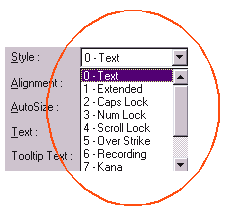
Panes can have one of a number of styles. The most common style is "Text", which means that the pane displays the text found in the Panes tab Text box or text appended to it programmatically. Panes, through their styles, can also display time or date, the state of various keys and modes, or even katakana. Panes can have different foreground and background colors. They can display images as part of their content. |
Run time is when the AStatusBar's panes become useful. You can use ATEasy procedure code to change the message that an AStatusBar pane displays depending on conditions you set or monitor in your program.
To change the message of a given pane, for the leftmost pane of an AStatusBar control called sbr1, you would say:
sbr.panes(0).Text = "New Message"
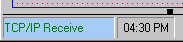
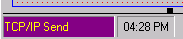
Here is an example of a procedure -- the OnInterface event procedure of a TCP/IP driver -- where program conditions change the content of a status bar pane.
Procedure OnInterface(enInterfaceType, lCause, enCuase) : Void Public
! This occurs when a driver interface fires an event
! Interface mask is 0x18 - fire for either aioWsRead or aioWsWrite interface events
!-------------------------------------
enInterfaceType - Val enunInterfaceType
lCause - Val Long
enCause - Val enumInterfaceEvent
! ------------------------------------
Procedure OnInterface
{
if enCause and aioWsRead
sbr.Panes(1).BackColor=aclrDarkMagenta
sbr.Panes(1).ForeColor=aclrYellow
sbr.panes(1).Text = "TCP/IP Receive"
elseif enCause and aioWsWrite
sbr.Panes(1).BackColor=aclrCyan
sbr.Panes(1).ForeColor=aclrDarkGreen
sbr.panes(1).Text = "TCP/IP Send"
endif
}
In this procedure, the status bar pane text changes depending on whether data is being sent or received over the TCP/IP connection.
|
|
|
You can create and destroy panes dynamically by using InsertPane() and RemovePane(). When you say:
sbr.InsertPane(0)
a new pane will be inserted at the leftmost position, bumping all the other panes to the right. When you say:
sbr.RemovePane(0)
the leftmost pane will be deleted, bumping all other existing panes to the left.
An individual pane can be addressed either by number (0 to n-1), or by the "friendly name" you give it in the "Panes" tab of the AStatusBar properties pages. So, you can say
sbr.panes("My First Pane").Text = "Hello!"
If you attempt to insert a new pane with a new name, the new pane will be appended to the right of any existing panes:
sbr.InsertPane("My Last Pane")
If you attempt to delete a pane with a nonexistent name, you will get an error.
Finally, you can iterate over the panes in an AStatusBar control by using the PaneCount property to get the total number of panes in the control.
for i=0 to sbr.PaneCount-1 do
sbr.panes(i).Text = str(i)
next