control
in the Controls toolbar, and then drag on the form background to the size
desired. Typically, the Tab control takes up the entire space of the parent
form except a Close button at the bottom.
control
in the Controls toolbar, and then drag on the form background to the size
desired. Typically, the Tab control takes up the entire space of the parent
form except a Close button at the bottom.Using the ATab Control |
Version 5 |
ATab control allows you to define multiple pages for the same area of a form. Each page consists of a set of information or a group of controls that ATEasy displays when the user selects the corresponding tab.
A "tab control" is analogous to the dividers in a notebook or the labeled folders in a file cabinet. Use the tab control to show multiple pages of information or controls to a user, one at a time.
To create a tab, click on the ATab
control
in the Controls toolbar, and then drag on the form background to the size
desired. Typically, the Tab control takes up the entire space of the parent
form except a Close button at the bottom.
To create Tab pages on the tab, open its property page and select Pages tab:
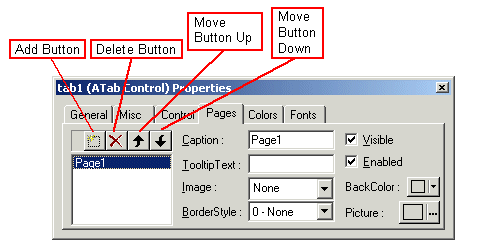
Create multiple pages using the Add button - for each button, enter appropriate Caption, the name of the page, and other properties. User Delete button to delete a page and Move buttons to switch the order of tab pages.
Each page is implemented as a ATabPage, an Internal library class. You can access information of each page through ATabPage properties. Also you can perform necessary operations through ATab's Events, Properties, and Methods.
Alignment property - using this property you can set the location of the tab - top, bottom, right or left defined in enumATabAlignment.
Pages property - this property allows to access each Tab Page programmatically. This returns a specific page either by position or by name.
PageCount property returns the number of tab pages.
ActivePage property returns the active page.
ActivatePage method activates a specific page either by position or by name.
InsertPage, RemovePage methods allow you to insert or remove a page (ATabPage object) during run time (v.6).
OnPageSelChange event allows you to perform necessary operations as you navigate pages.
ATabPage Visible property - using this property you can hide some pages thus show only remaining ones.
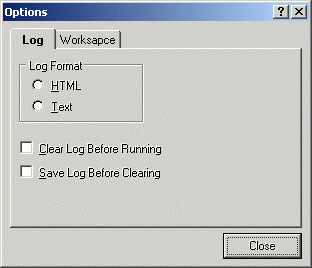
ATEasy TestExec driver (v 5.0) contains two examples of using ATab - formOptions and formToolUsers. The following shows the example in formOptions:
|
|
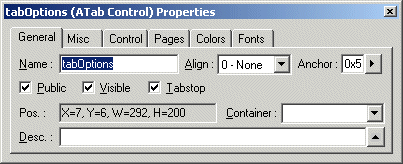
In this example, the Tab control, TabOptions has two visible pages for Log and Workspace information/controls.