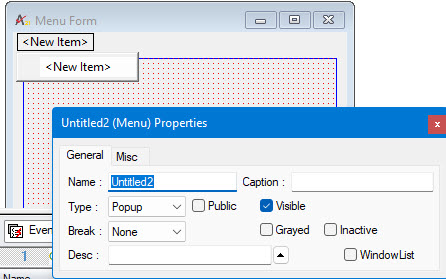
In order to insert a menu item, right click on <New Item> that is always displayed and used as a placeholder for new menu items. Next, select Properties. Using teh propeties window you can change the menu item Name (used when programming), its Caption shown in the menu, and change its Type
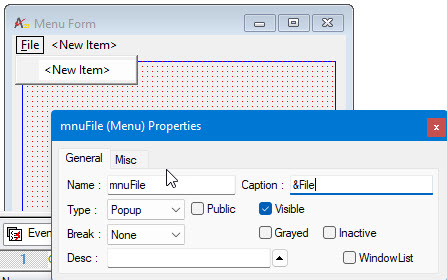
Changing the menu item as follows to make it a Popup type, &File name, The &F is used at run time to open the popup menu using the ALT+F key combination:
 .
.
Other types of menus/menu items are:
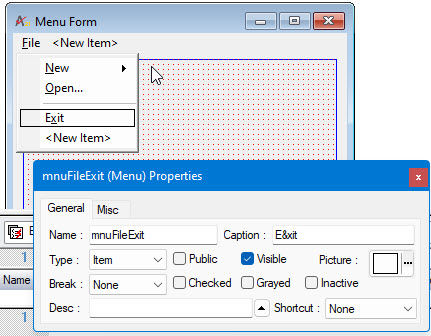
● Item. This is the usual type of
menu item. It hangs below a header item, and is a selectable choice within
the menu as shown here:
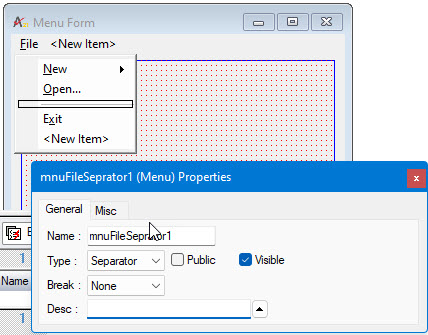
● Separator. This turns a menu item
into a horizontal bar separating menu items. The item is no longer selectable
as shown here:
● Popup. This turns a menu item into
a menu with menu items displayed below it, from which other choices spring
off horizontally. The item caption will be followed by a  symbol; the item will not be selectable itself. Here is an example:
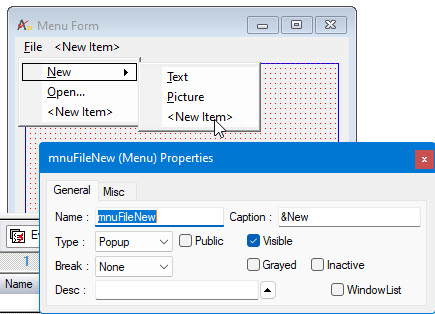
Menu items can also be Checked, Grayed, or Inactive. Checked makes a check mark appear to the left of the Caption. The Checked property can be turned off or on again when one selects the menu item and fires its OnClick() event. Grayed property grays out the text of the menu item, and makes it un-selectable. Inactive makes the menu item un-selectable. All of these properties can be set at design time and changed via procedures at run time.