to
insert a new form into the list of forms in the left-hand Explorer pane
of the ATEasy
window.)
to
insert a new form into the list of forms in the left-hand Explorer pane
of the ATEasy
window.)Here are the steps to create and load a sample form:
Step 1. Create the form.
(Use
the Insert Below button to
insert a new form into the list of forms in the left-hand Explorer pane
of the ATEasy
window.)
You will see the new form displayed in the ATEasy IDE:
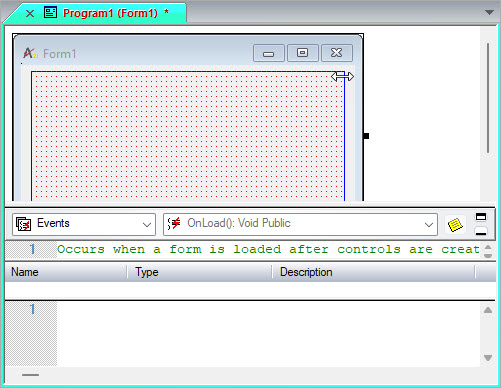
Step 2. Name the form SimpleForm in the Name box on the form property sheet.
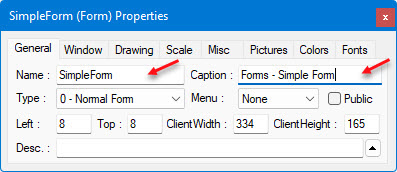
Note the difference between the Name and the Caption properties. The Name property gives the name by which the form will be referred to as a type of form variable; as an identifier, it is a single word, inter-capitalized. The Caption property gives the "human-readable" name the form will display in the title bar; as such, it can contain spaces.
Step 3. Add controls and/or menus.
Select the AButton control  from the Controls toolbar. Click
and drag in the form's client area to place and size the AButton
control on the form.
from the Controls toolbar. Click
and drag in the form's client area to place and size the AButton
control on the form.
Step 4. Add form variables and procedures for events. Here, the OnClick() event is getting a procedure.
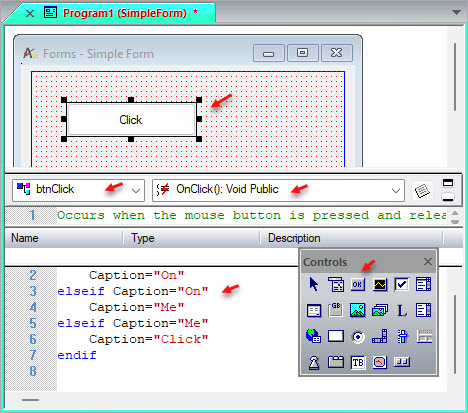
Step 5. Create a variable named frmSimple of type SimpleForm.
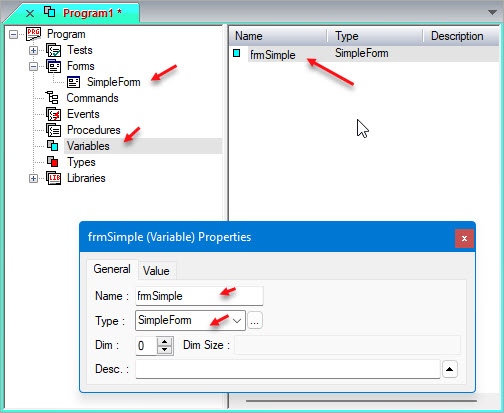
(Select the Variables icon  in the left-hand Explorer
pane of the ATEasy window. Use the Insert Below button
in the left-hand Explorer
pane of the ATEasy window. Use the Insert Below button  to insert a new variable into the list. Type 'simpleForm' as the type
of the variable, with a lowercase initial letter. If you have correctly
created the form, ATEasy will locate
it and correctly reference it as 'SimpleForm." This auto-correction
of capitalization is a good way to check your form. )
to insert a new variable into the list. Type 'simpleForm' as the type
of the variable, with a lowercase initial letter. If you have correctly
created the form, ATEasy will locate
it and correctly reference it as 'SimpleForm." This auto-correction
of capitalization is a good way to check your form. )
Step 6. In the Task window of the project, write a procedure that loads frmSimple.
Select the Tests icon  in
the left-hand Explorer pane of the ATEasy
window. Use the Insert Below button
to insert a new task into the list. In the right-hand pane of the ATEasy window, examine the
Task and Test windows. Select the new test ("Untitled Test")
and rename it Example.
in
the left-hand Explorer pane of the ATEasy
window. Use the Insert Below button
to insert a new task into the list. In the right-hand pane of the ATEasy window, examine the
Task and Test windows. Select the new test ("Untitled Test")
and rename it Example.
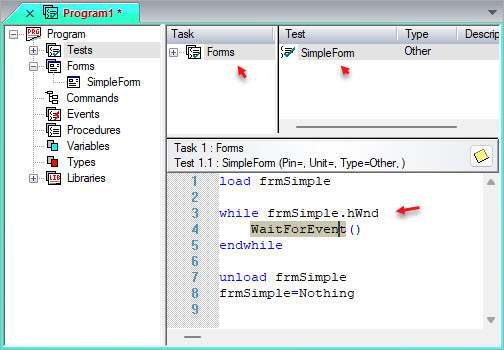
In the lowest blank text area under the Task and Test windows, enter the procedure that loads frmSimple.
load frmSimple
Step 7. Wait until teh user closes the form. When the form gets destroyed the window handle hWnd property will set to 0, causing teh while loop to end. In addition to avoid consuming a lot of CPU cycles we call WaitForEvent() this function will return any time the user interact with the form (i.e., close the form, click on a button or even move the mouse over the form:
while
frmSimple.hwnd
WaitForEvent()
endwhile
Step 8. In that procedure, write code that unloads the form once it is closed.
unload frmSimple
frmSimple=Nothing
Now, you have entered a complete sequence to load the form and unload it once it is closed.
The program's steps really constitute the runtime life of a form:
A. Load and show the form (load frmSimple).
B. Close the form (unload frmSimple).
C. Destroy the form object (frmSimple=nothing).
Step 8. Run the form using the
DoIt!  icon.
icon.
The DoIt! icon
should be visible and active in the top row of icons. In order for it
to be active, the form must be in a project and the project must be Active;
otherwise, the icon will be grayed out. See Set
the Active Project. If you click on it, the form will load and will
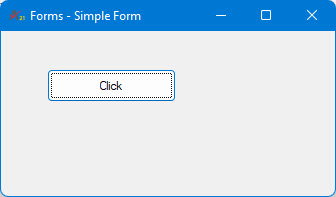
be shown.