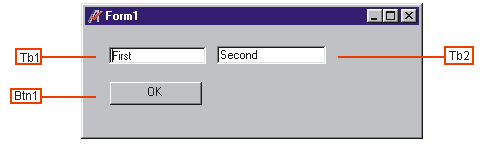
The tab order is the order in which a user moves from one control to another by pressing the TAB key. Each form has its own tab order. Usually, the tab order is the same as the order in which you created the controls.
For example, assume you create two text boxes, tb1 and tb2, and then a command button, btn1. When the application starts, tb1 has the focus. Pressing TAB moves the focus between controls in the order they were created.
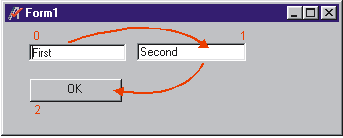
To change the tab order for a control, set the TabIndex property. The TabIndex property cannot be directly set by program commands. Rather, in ATEasy, you set it during design time, by using the TabOrder button  . The TabOrder button shows you the order in which the form's controls will be tabbed to.
The TabIndex property of a control determines where it is positioned in the tab order. By default, the first control drawn has a TabIndex value of 0, the second has a TabIndex of 1, and so on. You can click on a control's tab order number to set it as the first one. When you change a control's tab order position, ATEasy automatically renumbers the tab order positions of the other controls to reflect insertions and deletions. For example, if you make btn1 first in the tab order, the TabIndex values for the other controls are automatically adjusted upward.
Before: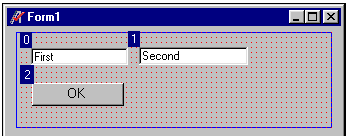
After: 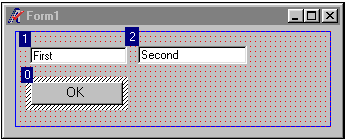
The highest TabIndex setting is always one less than the number of controls in the tab order (because numbering starts at 0). Controls that cannot get the focus, as well as disabled and invisible controls, do not have a TabIndex property and are not included in the tab order. As a user presses the TAB key, these controls are skipped.
Usually, pressing TAB at run time selects each control in the tab order. You can remove a control from the tab order by deselecting its TabStop checkbox on the General tab of its property page.
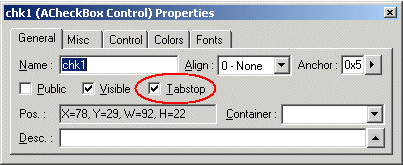
A control whose TabStop property has been set to False still maintains its position in the actual tab order, even though the control is skipped when you cycle through the controls with the TAB key.
In ATEasy version 5.0, you can change the Tab order in another way. At the form design view, if you pull down the Object/Submodule Combo Box, you see the list of controls which are listed in the same Tab order. Now it has the ability the drag and drop controls at the combo box. By re-ordering via Drag and Drop, you can also change the order of Tab.