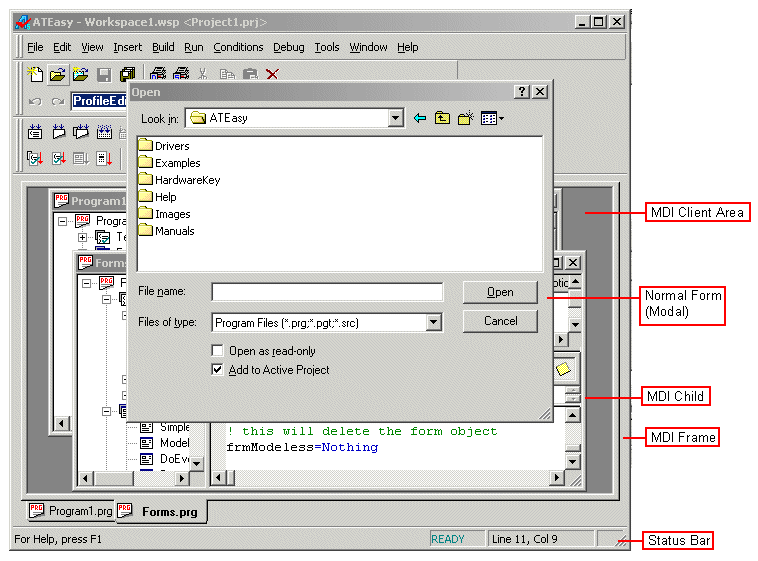
ATEasy's own user interface makes use of a Windows structural concept called MDI: Multiple Document Interface. MDI allows you to create multiple MDI child forms within a single MDI ("container") form. Within the ATEasy window below, you see the parent window ("MDI Form") which contains the MDI child windows along with other windows such as the toolbar and status bar. The child windows on the bottom right of the screen below can be moved only inside the MDI client area. The File Open dialog box, in the middle of the screen below, is an example of a normal modal form, which can be moved anywhere on the desktop.
Just as ATEasy's user interface makes use of MDI on the large scale of the application, ATEasy forms can make use of it as well. There are three types of form that can be created in ATEasy: The type of form can be set via the Type property, as follows:
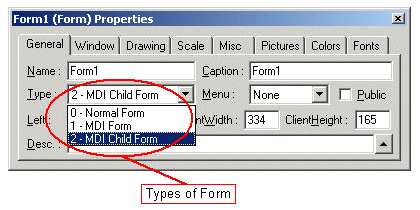
0 - Normal Form
1 - MDI Form
2 - MDI Child Form
Generally, users will make use of the Normal form type, which is the default, to display their forms. A situation in which a user might want to use MDI forms is when the user wants two or more forms to stay together and to share some common properties, events, and methods. At run time, an MDI child form will stay within the client area of its parent MDI form, and cannot move outside of it; when you try to move an MDI child form outside of its parent's workspace, it is clipped at the MDI client area's boundary. Only one MDI form per application can be created at a time.