ATEasy forms, controls, and menus are objects which have their own properties, events, and methods.
● Properties are attributes of the object which can be set (written) or read (gotten). Forms, for example, have visible properties such as Caption.
● Events are notifications that usually occur in response to an action performed on the object -- either a change in state, or a user action such as clicking a mouse or pressing a button. When an event occurs, a procedure with a predefined name such as OnClick() is called, according to the type of event. The procedure code can be filled in by the programmer.
● Methods are actions performed on an object which are built into the object itself. Unlike procedures, which can be written and altered by the user, methods are immutable. A method is typically called from an event or procedure inside the form.
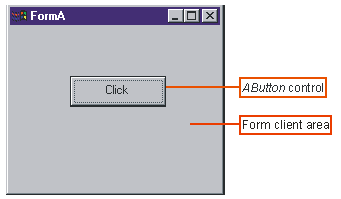
For example, take a push button on a simple form. This button has properties, events, and methods.
● As an example of a property, this button has a Caption property -- text which will be displayed on top of the button. The value of this button's Caption property is "Click."
● As an example of an event, this button can respond to the click of a mouse over it using the OnClick() event.
● As an example of a method, the button has a Move method which can be called to move and size the button within the client area of the form.
Control and Form properties can be set at design-time using the Properties
window or Propeties Grid Window. You can also change some of the properties
values at run-time using programming code. To set the properties
values during design time, click on the control or a form and press the
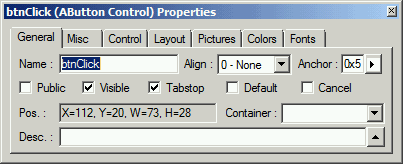
Properties icon  . The following
window will show:
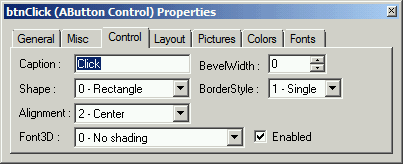
. The following
window will show:
|
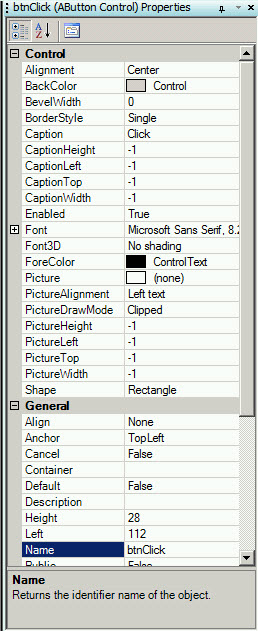
Here, the Caption is "Click", the Name is "btnClick", and the Shape is "0 - Rectangle."
Some properties can be also altered using program code at runtime. For example, the Caption property can be set in code. In the program, it would look like this:
btnClick.Caption = "Click."
Certain other properties can only be set using the Properties window at design time. These include such properties as Name and Shape.
In v10 you can also set the properties values using the Properties Grid Window:
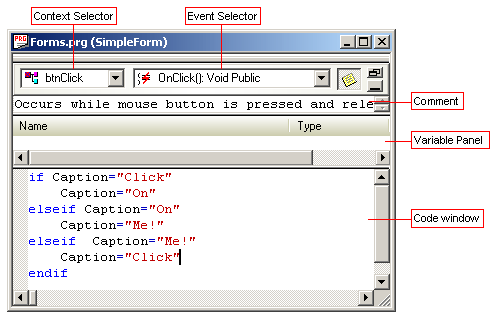
In the example below, the selectors below show that the event OnClick() is selected as an event tied to btnClick, the button on our simple form above. As the description of the event says, the event occurs while the mouse button is pressed and released upon the object. It is at that point that a message is sent to execute the code shown in the code window. The context selector shows that the context of the procedure is the button, btnClick. Thus, when the procedure code refers to Caption, it can do so without explicitly specifying which button's Caption it is changing. If there were two buttons on the form, btnClick's Caption would have to be referred to as btnClick.Caption.
Many internal objects in ATEasy have their own methods. For example, this is true of the AForm and AMenu classes. In the case of AForm, the Move method can be applied either to the form object itself or to the controls the form contains. The Move method moves an object on the form's coordinate system, by specified coordinates. In the following example, the Move method is put within the OnClick() event handler.
btn1.Move (5,10,120,60)
moves the button to 5 units from the left of the form, 10 units from the top of the form, and resizes it to 120 by 60 units. (ScaleMode is set so that the default units are pixels.)
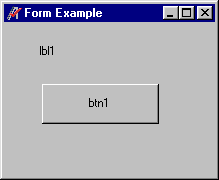
In this example, the button is clicked, and the Move method moves and resizes the button.
|
|
Button before Move method applied. |
Button after Move method applied. |