Every ATEasy form has a collection of events. An event is a notification that occurs in response to an action, such as a change in state, or as a result of the user clicking the mouse or pressing a key while viewing the form. An event handler is code, typically a function or routine written in ATEasy's scripting language, that receives control when the corresponding event occurs. ATEasy allows you to write event handlers for the form's events and for events in the life of each control on the form.
There are certain events common to every form and every control. These events include mouse moves, presses, releases, clicks and double clicks, as well as key presses and releases. There is also an extended set of events that are common to most controls, where the functionality is provided by ATEasy instead of the control itself. These extended events include receiving and losing focus, and events related to the calling of help functions. There are still other events that are specific to particular controls, such as the change in the ThumbIndex property as an ASlider's thumb is moved around.
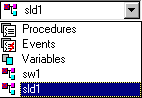
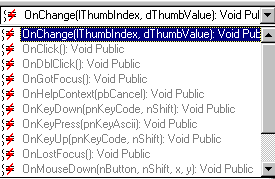
When you encounter a form at design time, you will see two pulldown menus, one under the left-hand side of your form and the other under the right-hand side of your form.
|
|
|
The left-hand menu is called the context selector. The user uses the context selector to pick the component of the form for which events will be listed on the pulldown menu to its right, the events menu. The context selector lists procedures, events, and variables for the form itself, and then lists the controls on the form. When the user selects the control for which he would like to create an events handler -- in the picture above, sld1, a slider control -- a complete list of the available events for that control appears on the right, in the events menu. Events for which code exists will be listed in normal type. Here, the OnChange() event is displayed in normal type. Events for which no code yet exists will be displayed in grayed out type, but they can be selected too; that way, you can add code for them.
Once you have selected the control and event that you would like to add code for, you are ready to add the procedure that will be run when that event occurs. It is worth noting that you should keep your code for any given event small. When the event takes place, your procedure will have "focus," so to speak, and if it is called frequently and takes significant time to run, it may slow down the entire application.