
A form must be loaded in order for it to display. A form can be loaded by writing a procedure which contains instructions to load the form. This procedure is usually located under the Procedures heading of the module under which the form has been created.
Once you have created your form, you can create a new procedure under the Procedures node, by using the Insert Below button  on the toolbar or on the right-click context menu.
Next, you need to create a variable which will reference the AForm (form) object you wish to load.
Important Note: Do not use any code, such as a form event, control event or menu event, inside the form that references the variable used in the Load statement. Otherwise the code will not execute correctly. You do not want to tie the form to the specific variable name because changing the name of the form variable will require changing every reference to the form variable in the code.
To create a variable, you click in the variable pane of the procedure window, and use one of the Insert buttons, for example, Insert Below , to insert the variable.
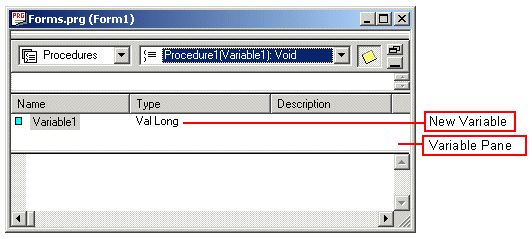
You will now want to rename the variable and change its type. You can do this using the Properties window, which you can bring up for the variable by double-clicking it or right-clicking it.

You probably will want to name the variable with a significant name. Including the name 'Form' would be useful, and you probably want to give some idea of the form's function. Here, the new name of "Variable1" will be "MyFormExample."
The crucial part comes in changing the variable's type. The type we need is not one of the preset types available in the pulldown menu of the Type box. Instead, in the Type box, you must type the name of the form which you created. If you named your form with both uppercase and lowercase letters, try typing in the form name in all lowercase. If ATEasy recognizes the form name as the name of the form you created, it will change the capitalization of the name to match the original.
Now that you have a form variable with the proper name and type, you can write a procedure which will load the form. In the code pane of the procedure window, you can type the statement:
Load MyFormExample
This statement alone will load the form.
After you have dismissed the form, for example by clicking on the close box in the upper right-hand corner, you may want to unload it, and possibly eliminate the form variable from memory. This can be done with the lines:
Unload MyFormExample
MyFormExample=Nothing
To run the program and load the form: First, put your cursor in the code window. The FormIt! button  should be visible in ATEasy's top icon bar. Press the FormIt! button, and the form will load.
Finally, it is worth noting that within any form, there are events associated with the loading and unloading of the form. For example, OnInitialize() and OnLoad() allow you to schedule events around the time when the form is loaded; OnQueryUnload() and OnUnload() allow you to schedule events around the time when the form is unloaded, and OnTerminate() lets you schedule an event for when all references to the form are eliminated from memory.
For further information, see Load Statement and Unload Statement.
Additional examples for forms are in the forms.prj example in ATEasy Examples directory.