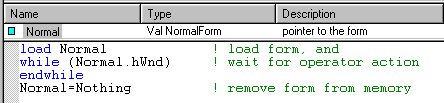
The object name associated with this form. The object name must start with an alpha character and cannot contain blanks or special characters.
The name you assign to a form is the type name you use when creating a form variable. For example, if you name your form "NormalForm," the following code could be used to view and test the form.
The variable Normal is set to a data type of NormalForm (points to the form object). NormalForm is the newly created form.
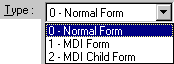
ATEasy supports three form types. They are: normal, multiple document interface (MDI) Frame, and MDI Child.
|
|
The form type is selected from a drop-down menu. |
The following image shows examples of the three form types.
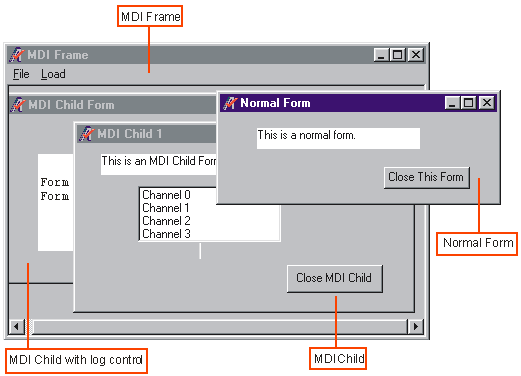
A normal form can exist independently of all other ATEasy form windows. The normal form (above) can be overlapped on top of or underneath the MDI form.
The multiple document interface (MDI) form is a container that is used to hold other forms (child forms). Should the MDI frame be closed, all open child frames are also closed.
A MDI (multiple document interface) child form can only exist inside an MDI form. Note how the log form is positioned far enough to the left that some of the form is not displayed. The second MDI child form is completely inside of the MDI form and entirely visible. MDI child forms can be opened and closed as needed.
|
|
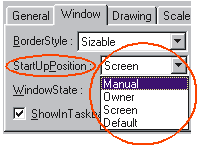
The Left and Top values are used in conjunction with the StartUpPosition of the Forms, Window Properties. |
|
This StartUpPosition |
Modifies Left and Top to... |
|
Manual |
Left and Top specify the position of the top, left corner of the form relative to the top, left corner of the screen. |
|
Owner |
Left and Top specify the position of the top, left corner of the form relative to the top, left corner of the parent window. |
|
Screen |
The form is positioned in the center of the screen -- the Top, Left values are not used. |
|
Default
|
The form is positioned by the Windows operating system -- the Top, Left, Width, and Height values are not used. |
The description allows you to add comments about the form. To add multi-line comments, you can click on the  button by the side of the description line; this will enlarge the comment line into an entire window.
|
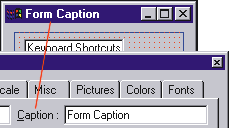
The caption is the name displayed in the form window bar. |
|
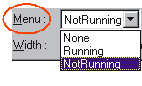
The Menu drop-down selection box allow you to select which menu will be displayed when the form is initially displayed (the default menu).
|
|
The example to the right shows three choices: None, Running, or NotRunning. |
|
If you select: |
Menu displayed |
|
None |
No initial menu is displayed |
|
Running |
Running (first menu) is initially displayed |
|
NotRunning |
NotRunning (second menu) is initially displayed |
ATEasy allows you to have multiple form menus. For example, you may have a situation where one form is used to control more than one test or task, but the menu items are slightly different to accommodate the nature of the tests. In the example above, the menu called "Running" will be the menu displayed; the menu called "NotRunning" will be inaccessible unless it is brought forward in part of the underlying form code.
Note: When two form objects occupy the same space on the form (for example, the Running and NotRunning menu objects), only one object can be viewed or edited at any given time. Use the following technique to display and edit an object:
Use the form object combo box to see a list of form objects.
Select the form object which is not visible.
Edit the properties of that object
Clicking on the Public checkbox toggles its state.
When the box is checked, the data object is public and can be used by procedures and tests outside the form. When the checkmark is not visible, the data object is private and can only be accessed from procedures or events inside the form.
These two properties define the width and height of the form. Changes to the width and height of the form will be reflected in the design-time view of the form.
Note: The Width and Height are not used when the StartUpPosition in the Window tab is set to default.