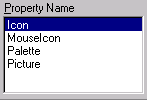
The Property Name list displays all properties that can be changed. The picture properties include the Icon image, Mouse Icon image, Palette image, and Picture image.
The image files are imported into your compiled ATEasy program
|
The Property Name list displays all properties that can be changed. The picture properties include the Icon image, Mouse Icon image, Palette image, and Picture image. |
|
The icon image is the form icon found at the upper left corner of the form. If a form icon is not specified, the default icon image is used.
|
Default Icon |
Example of custom icon |
|
|
|
A ".ico" file must be selceted for the custom icon image. Example: co_1.ico.
Under program control, you can select one of 16 mouse cursor images to display on your form. One of the mouse cursor image selections is reserved for a custom cursor (aformMousePointerArrowCustom).
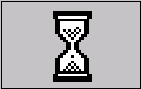
The MouseIcon image selection is how you import a custom cursor image. The following code shows how the mouse pointer is changed.
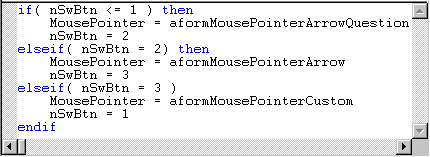
A ".cur" file must be selected for the MouseIcon image. Example: wait.cur.
A palette image provides color information to the system drawing routines used by ATEasy. The palette image is used for color mapping when your computer display is set to 256 color mode. Requested colors are mapped to the nearest palette image color, and then to the nearest system color.
The palette image must be loaded into ATEasy and is used when PaletteMode, in the Drawing Tab, is set to 'Custom'.
The picture image is displayed as a form background image. The picture can either be:
stretched to fill the form
displayed at its original image size
If displayed at its original image size and the original image size is larger than the form size, the picture image is clipped to fit the form size.
 Clicking the Browse button opens a dialog window to locate files.
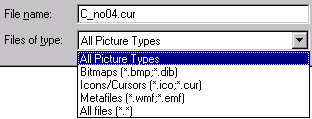
You can browse local or network drives to select an image file—or enter the path\filename, then click on the Open button to import the file. The selected image file is displayed in the preview window.
 The Clear button removes the selected image specified by the Property Name. If Property Name is set to display MouseIcon, pressing Clear removes the MouseIcon.
|
The Preview window displays the image related to the currently selected Property Name. The example to the right shows a preview of a program Icon. |
|