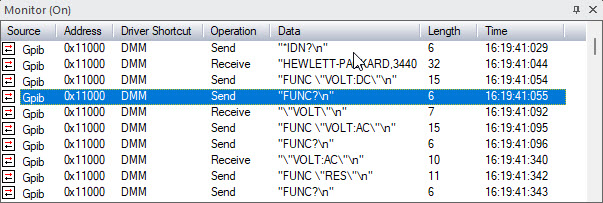
Use the Monitor window to view the actual communication between ATEasy and the instruments it controls. You can select the interfaces for which you want to view the actual communication between ATEasy and the instruments it controls. Depending on which interfaces you select, when you run a program the Monitor window displays the GPIB, RS232, VXI, and other strings sent or received by ATEasy.
To use the Monitor window:
1. Select Monitor from the View menu. ATEasy displays the Monitor window.
2. Right-click in the Monitor window and select Start Logging. When you select this command and run a program, the Monitor window displays the GPIB, RS232, VXI, and Other (file/device drivers) strings sent or received by ATEasy.
3. To select the interfaces for which you want to view the actual communication between ATEasy and the instruments it controls, right click in the Monitor window and select Filter. For more information about filtering, see Monitor Filter.
4. To clear the contents of the Monitor window, right-click in the Monitor window and select Clear.
Here is an example of the Monitor Window output: