When working in the ATEasy development environment, you can create, save, and open log files.
To create a new log file:
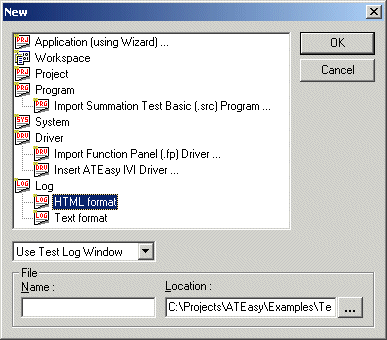
From ATEasy's File menu, select New. The New dialog box appears:
Select HTML format to create a new HTML log. Select Text format to create a new text log.
If you want to give the log file a specific name, enter that name in the Name field. If you don't specify a log file name, ATEasy names it Testn.log, where n is a number that is incremented each time that you create a new log with this name format.
If you want to save the log file in a specific disk location, specify that location in the Location field. By default, ATEasy saves log files in the ATEasy\Examples folder and uses the "log" suffix (for example, filename.log).
Click OK.
If the current log has changed since the last save, ATEasy asks you if you want to save it now. Click Yes to save the current log, No to discard it, or Cancel to cancel your request to create a new log file and continue with the current log.
To save an existing log file:
Select the log window in the ATEasy development environment.
From the File menu, select Save.
To open a log file:
Double-click the file in Windows Explorer. The file opens in the ATEasy development environment.