The Compare Folders Window can be opened from the File menu, Compare Folders... command. It is used to compare, merge open, edit, copy and delete files from two folders. Comparison of files is done by comparing file size, modified date/time or file content (see options below). The window shows two folders and their files in a sorted tree view. Each tree item has an comparison status showing if the file is identical in both folders, different,merged but still different or missing, The following controls are displayed:
Used to enter the folder displayed on the left side if the dialog, Press on the browse ... button to select a folder using a file browser. To select a folder that was previously entered use the drop list. For network mapped folder, specify the URL (e.g. \\computer\folder\...).
Used to enter the folder displayed on the left side if the dialog, Press on the browse ... button to select a folder using a file browser. To select a folder that was previously entered use the drop list. For network mapped folder, specify the URL (e.g. \\computer\folder\...).
Swap the right and left folder paths.
Enter or select from the drop list a file filter for the file to include from the files in the left/right folders selected. The list can contain multiple file filters separated by semicolon. The file filter can use *, for example *.prg - include all files with prg file extension. By default a predefined filter shows:
*.prj;*.pjt;*.prg;*.prt;*.sys;*.syt;*.drv;*.drt; - all ATEasy source files
*.prj;*.pjt;*.prg;*.prt;*.sys;*.syt;*.drv;*.drt;*.wsp;*.prf*;.cnd;*.htm;*.html;*.log;*.txt - ATEasy files
*.* - all file types
Enter or select from the drop list a file filter for the file to exclude from the files in the left/right folders selected. The list can contain multiple file filters separated by semicolon. The file filter can use *, for example *.prg - exclude all files with prg file extension.
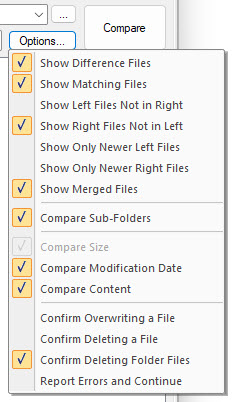
Opens the Options menu:
You can check or uncheck the following options:
● Show Difference Files - when checked, shows files that are different
● Show Matching Files - when checked, shows files that are a match
● Show Left Files Not in Right - when checked, shows in the right file list files that do not exist on the left folder
● Show Right Files Not in Left - when checked, shows in the left file list files that do not exist on the right folder
● Show Only Newer Left Files - when checked, shows only left folders newer files than the files in the right side (ATEasy v14/2026)
● Show Only Newer Right File - when checked, shows only right folders newer files than the files in the left side (ATEasy v14/2026)
● Show Merged Files - when checked, shows file that were merged (using Merge button), if unchecked file will hide after merging the files
● Compare Sub-Folders - when checked, shows sub-folders and files within the sub-folders
● Compare File Size - If right and left files size are different, file are considered different. This option always disabled and checked.
● Compare Modified Date - If checked files are considered different if their modified time is different. If this option is checked and Compare Content option is unchecked the comparison is faster but not 100% accurate.
● Compare File Content - if not checked, file are considered the same if they have the same size and modified date/time. When this option is selected, file size and file content are compared instead. Default: Unchecked (faster comparison), New option from ATEasy 10 156e, ATEasy 2021.
● Confirm Overwriting a File - when checked and the user copies a file to an existing file, prompts the user to confirm that file is about to overwritten
● Confirm Deleting a File - when checked and the user deletes a file, prompt the user to confirm deleting the file
● Report Errors and Continue - when checked, Copy or Delete operations that fails will be reported to the ATEasy Build Log but the Copy/Delete operation will continue to the next files. If not checked (default), these operations stop on failure displaying a message box with the error. (ATEasy v14/2026)
Compare the Left to the Right Folder filling the Left and Right Folder Files list.
Displays the file and folders list from the Left Folder. Files or folders displayed in gray do not exist in this folder. Each file name or folder is displayed with an icon. See the file icon legend below . Hovering over a file will display more information about the file including modification date/time and the file size. Selecting an entry or scrolling up or down in the list will cause the Right Folder Files to select the same file or to scroll to the same position.
Images display next to each file or folder indicate the following:
 - Right and Left Files are the same
 - File exist in this list/folder but not in the other folder list
 - File missing from this list folder, File next to the image displayed
in gray to indicate missing.
- File missing from this list folder, File next to the image displayed
in gray to indicate missing.
 - File exist in both folders but are different
 - File that are different and already merged
 - Folder
 - Folder exist in this list but not on the other
 - Folder exist in the other list but not in this
list, Folder next to the image displays in gray to indicate missing.
- Folder exist in the other list but not in this
list, Folder next to the image displays in gray to indicate missing.
Displays the file and folders list from the Right Folder. Files or folders displayed in gray do not exist in this folder. Each file name or folder is displayed with an icon. See the file icon legend below . Hovering over a file will display more information about the file including modification date/time and the file size. Selecting an entry or scrolling up or down in the list will cause the Left Folder Files to select the same file or to scroll to the same position. See Left Folder List for more information about the images displayed next to each file or folder.
Copies a file or a folder tree to the right (Copy >>) or left (<< Copy) side. If the selected item is a folder, all the list folder files and sub-folders are copied. Use the Confirm Overwriting a File option to prompts the user to confirm that file is about to overwritten.
Deletes a file or a folder. If the selected item is a folder its files and sub-folders are deleted. Use the Confirm Deleting a File option to prompts the user to confirm that file is about to be deleted.
Opens a file. If the file is an ATEasy project, program, system or a driver, the file will be opened and added to the workspace. ATEasy log files are opened in ATEasy and ATEasy Workspace file are opened in another instance of ATEasy. All other files are opens with their Windows default application as set by Windows Defaults application.
Edits the file in text mode. If the file is an ATEasy project, program, system or a driver, the file will be opened in a text editor inside the IDE. See Edit in Text Format Command (File Menu) for more information about text mode editing
Selects the next changed file in the file list.
Opens ATEasy Merge to merge the selected files in the right and in the left Folder Files.
Selects the prior changed file in the file list.