Use this dialog box to find text in ATEasy documents. You can search in the active view, the current document, all open documents, or the current project.
Enter the text that you want to find. If you previously entered text in this box, click the drop-down box to select the text. This text can be an Escape Sequence String if surrounded by double quote character (") - allowing you to search multiple lines text (e.g. "abc\r\n123" will search for lines that end with abc and starts with 123) .
Check to find only whole words that match the text, rather than partial words.
Check to find only whole words that match the text.
Select one of the following from the drop-down list in this field:
● In Active View finds text in one of the object views such as Code view or Description view or Variables view if the focus is in an object view.
● In Current Document finds text in the document in which the cursor is located.
● In Current Project finds text in the entire project.
● In All Open Documents finds text in all documents in the current workspace.
Check to find text in the names of objects.
Check to find text in the descriptions of objects.
Check to find text in Test and Procedure code.
Check to find text in ID field of Task or Test.
Check to find text in objects types including procedure, variable and parameter type.
Check to find text in objects value including variable and parameter initial value.
Select the direction option in which to search: Down to search down the page and forward across the next pages or Up to search up the page and backwards through previous pages.
If this is checked, then after the search reached the end of 'where' you specified above, it will continue to search again from the beginning/end of 'where'.
Click to begin the search from the active view current location. The found text is highlighted. If it cannot find the text, ATEasy informs you with a message in the status bar.
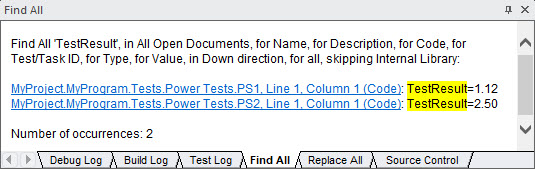
Click to find all occurrences and to select the first one. The found items links are shown in the Find All Log Window and are displays as links allowing you to navigate and view the found text.
Click to close the Find dialog.