The Add Source Control Files dialog used to add files to the source control repository.
The following controls are displayed:
Specify the root repository URL (or local/server folder if stored in a file folder).
For Microsoft Source Safe provider, this is the path to the Source Safe database folder (where srcsafe.ini resides). For Git provider, this is optional if the repository is in the local .git folder.
A subfolder within the Repository Root folder. If the subfolder have multiple levels specify in the subfolder/subfolder format. ATEasy will prompt you to create subfolders if they do not exist.
For Microsoft Source Safe, provide it is the source safe project where it reside. For Git, provider, this is optional if the repository is in the local .git folder. For SVN, specify the repository subfolder where the files will be stored.
A local folder as a top level folder for your local files. You can use
the browse button to select a folder or right arrow to insert a path
variable.
Source control providers typically will create a folder (.svn, .git) or
a file (.scc) to store information regarding your source control files).
If Project was selected to add (from the Workspace Window) - displays the project files, otherwise file that you have selected to add to the repository.
Add comments for the files being added.
Select all the file is the current project.
Turn off all the selection.
Keep the files being checked out after adding them to the repository.
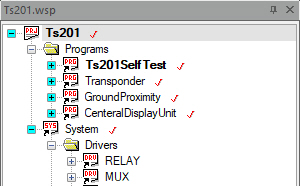
Pressing OK will add the selected files to the repository subfolder. If a new subfolder was specified, it will prompt you to create. It will check the files out if the Keep Checked Out check box is checked. After adding the file your workspace should have a checkmark next to files that are checked out and cyan + next to the file name to indicate that the file is under source control
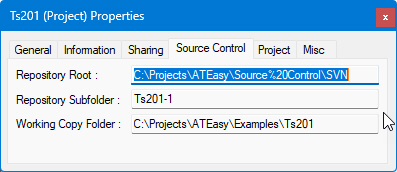
In addition the file that were checked in they properties should show the repository path and working directory as shown here:
Cancel the add operation and close the dialog.