 Build Command (Build Menu) Build Command (Build Menu)
Use this command to build active project modules into an EXE or DLL file that can be run outside of the ATEasy development environment.
When you build an application, you are building all modules in a project into a standalone application that is an EXE or DLL file. The generated file runs as a separate process outside the ATEasy development environment and cannot be debugged by using ATEasy run and debug commands.
Only referenced procedure are compiled, the command also checks that DLL procedures defined (under module's Libraries) actually exist in the DLL. To check all code in your project use the Check All Command.
The Build command compiles only the files that have changed since the last build. To build all files into the project, use Rebuild All.
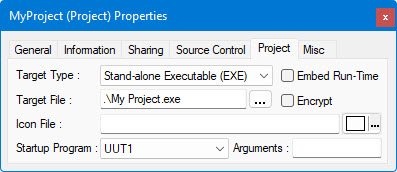
By default, the generated file has the same name and location as the project (prj) file. You can change the default name and location of the EXE file in the Project Properties page, after the EXE file is generated.
In the following example Project Properties page, the default name of the EXE file (EXE File Name) that was created in the project is MyProject.exe:
After building the file, you can put the compiled application or DLL into production for use by other test engineers and technicians.