Select the Drivers submodule below the System module in the Workspace Window.
Select Object Below  from the Insert menu or from the Standard toolbar or right-click on the Drivers submodule and select Insert Object Below from the context menu.
When an existing Driver has been set up and predefined, it can be added or inserted into any project. Using existing drivers in this way saves time.
Select the Drivers submodule below the System module in the Workspace Window.
Select Object Below from the Insert menu or from the Standard toolbar or right-click on the Drivers submodule and select Insert Object Below from the context menu.
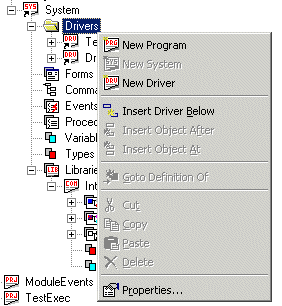
ATEasy displays a list of available drivers. By default, ATEasy drivers are installed in the Drivers directory below the main ATEasy directory. If you have Driver files in a directory other than the default one, navigate to that directory and then insert Driver files from there.
Select a driver from the list and click Open. ATEasy loads the driver and provides the existing driver shortcut name, such as TestExec in the illustration below.
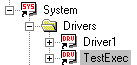
The document view for the added driver opens in the client area.