file checked out by the
current user
file checked out by the
current userThe ATEasy development environment integrates source control commands and functions of Various Source Control Providers including Microsoft Visual SourceSafe, Git, Subversion, CVS, Microsoft Team Foundation Server, SCC API providers and more. You can use ATEasy source control to retrieve and store versions of your ATEasy source files, set up your source control project hierarchy to match your development directory tree, and more effectively manage team projects by managing additions, deletions, and renames to the source control repository.
With source control systems, you use a database to track, organize, and manage "projects." These projects are a unit of organization, like a folder, and contain various kinds of files, including code and documentation. This version control enables you to more effectively manage the contents of projects, for example, labeling each item "release" as a version of a project or an application. Also, it allows to manage project history, for example, restoring older version of files for testing or releases.
Together with Source Code providers, the ATEasy development environment provides the following functions and commands:
Control all the projects and items in one central
repository storage for you team to access.
Use the basic source control commands directly from
ATEasy
menu commands.
View the history of a source control project.
Share the same item among many source control projects
without making copies of it everywhere.
Branch an item to create a unique copy of another
item (in Visual SourceSafe).
Merge two versions of the same item together (in Visual
SourceSafe).
A typical source code control configuration assumes that all the files kept in one master source code control database on a server, and that linked to each developer's computer by a network link. The repository path is where you store the original information, such as code and documentation, and the individual computers are where you develop (design, edit, and test) the files. With a central location of the files for your team, you can better control the access to the files and the organization of the project tree.
Before starting to use source control you must configure ATEasy and set the current source control providers using the Options SourceControl dialog: Selecting the provider will enable the source control menu commands
The ATEasy development environment integrates the basic commands and functions of the Source Control provider. ATEasy also tracks the status of the projects and items to help renaming, adding, and deleting files to the source control repository.
You can maintain the files in the master source control database through these four basic commands, available in the ATEasy development environment (under File menu - Source Control):
Get
Latest Version
The Get Latest Version command retrieves the most current copy of the
item from the source control repository and copies it to the local
machine.
Add
to Source Control
With this command, you can add a new project in the database or add
ATEasy
files to an existing provider project under the repository file/database.
Each ATEasy files added repository path and Project is recorded in
your document shortcut and can be viewed from the document shortcut
Source
Control properties page .
Check
Out
The Check out command retrieves the latest version of the file from
the source control repository and reserves that item to the local
user who is checking it out.
Check
In
The Check In command copies a local file to the source control repository,
adding the latest version.
ATEasy Tool
menu, Options has a Source
Control page that enables to link the above commands with ATEasy file commands - Open, New, Add,
and Delete.
You can see the history of a source control project through the History command in the development environment. This tells you when the latest changes were made, and by whom, and what happened to the item each item it was checked in, from the time it was first created.
You can share an source control item across more than one source control project. When you update one copy of the shared file, all copies reflect the new changes. The shared item is stored only once in the Visual SourceSafe database, with links to the items in the other projects.
You can display two files, one in the local machine and the other in the source control, side by side showing the differences.
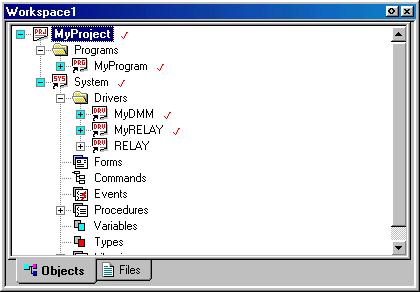
ATEasy source control also provides the following visual aids to indicate the status of each documents in the current active project:
file checked out by the
current user
 file checked out by others
 file checked
out by multiple users
file checked
out by multiple users
The tree document shortcut item with 'plus' and 'minus' sign with blue color indicates that the file is under Source Control.