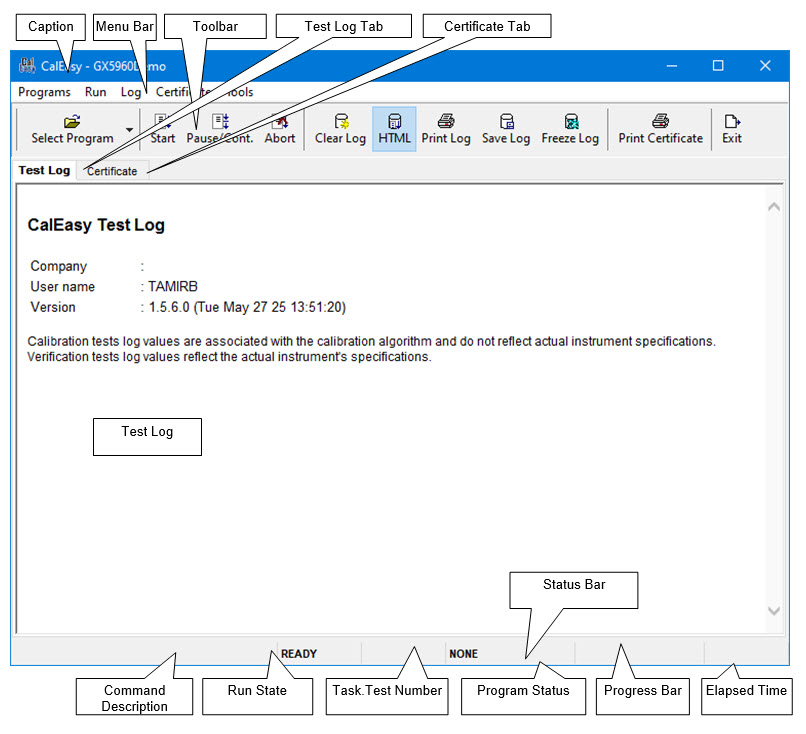
Once CalEasy is started the main window is displayed as shown below:
CalEasy main window
The following items are displayed:
Caption – Displays the selected calibration program name followed by device serial number and location (Usually PXI Slot).
Menu Bar – The application menu bar.
Toolbar – Displays the toolbar which is used for quick access to invoke commands that are also available from the menu.
Test Log Tab – The Test Log tab displays the verification and calibration program test results in the Test Log page. Results can be displayed in Text or HTML format. The test log is usually saved to the log folder automatically (See Options).
Certificate Tab – The Certificate Tab displays the calibration certificate once the calibration program successfully managed to calibrate the device. The certificate is usually saved to the certificates folder automatically (See Options).
Status Bar – The Status Bar displayed at the bottom of the windows and have the following panes:
Command Description – Displays the highlighted menu or toolbar item.
Run State – Displays whether the program is running (RUN), Aborted (ABORT) or is idle ready for a new run (READY).
Task.Test Number – When running it displays the current task/test number being executed.
Program Status – Displays the current program status (NONE, PASS, FAIL, and ERROR). When running verification task, it shows green if all tests are PASS or red if one of the tests fails. When running a calibration task, it starts as green and changes to red if one of the tests fails.
Progress Bar – Displays progress bar of the current running program.
Elapsed Time – Displays the elapsed since the program started to run.