Use the CalEasy Options form to set and customize the CalEasy environment. The Options form can be opened from the Tools menu. The following options tabs are available:
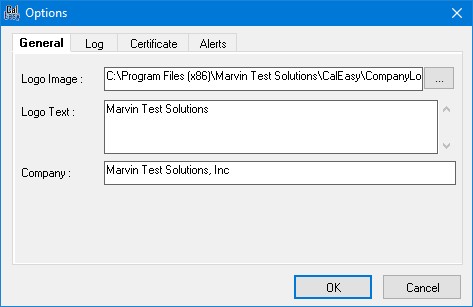
The following image shows the General options form:
Options General page window
The General options allow you to set the Company Logo image. The image is displayed in the test log and in the calibration certificate. You can also set the Text displayed next to the Logo and the company name.
The following image shows the Log options form:
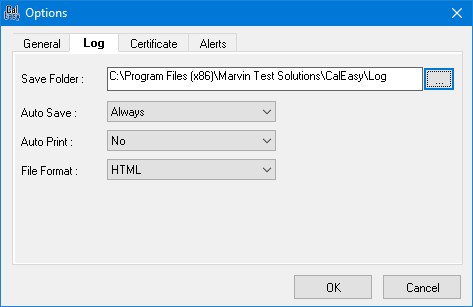
Options Log page window
The Log options allow you to select t the folder where the test log files are saved. You can also choose to automatically save the log always, when the program status passes or fails or not save the log automatically. Similar options are available to automatically print at the end of the program’s execution. By default, Auto Save is set to Always and Auto Print to No.
The following image shows the Certificate options form:
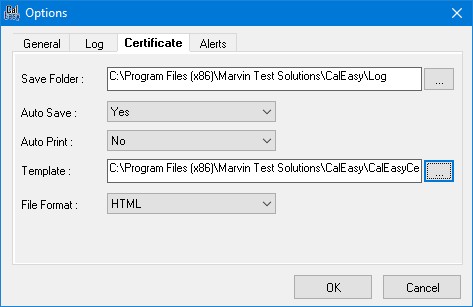
Options Certificate page window
The Certificate options allow you to select the folder where the certificate files are saved. You can also choose to automatically save the certificate always, when the program status passes or fails or not save the certificate automatically. Similar options are available to automatically print the certificate at the end of the program run. By default, Auto Save is set to Always and Auto Print to No.
You can also specify the certificate template file that is used as a template for generating certificates. By default, the CalEasyCertificateTemplate.htm is selected (located in CalEasy folder). You can modify this file to customize the certificate formatting, using an HTML editor to open the file modify and save to your own template.
The following image shows the Alerts options form:
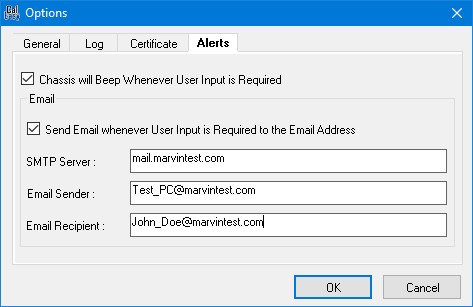
Options Alerts page window
The Alerts options page allows the user to generate alerts whenever user input is required. The user can enable the chassis internal buzzer to beep whenever user input is required as well as an e-mail alert that will send an e-mail with the instructions displayed on the screen to the specified recipient. The alerts settings are automatically saved once the OK button is pressed and will be reloaded the next time CalEasy is run.
The Alerts options page has the following controls:
“Chassis will Beep Whenever User Input is Required” (checkbox): if checked the chassis internal buzzer will beep whenever user input is required.
“Send Email whenever User Input is Required to the Email Address Below:” (checkbox): if checked, an email will be sent whenever User Input is Required to the specified recipient email address.
“SMTP Server:” (edit box): the SMTP server (Simple Mail Transfer Protocol) handles the email delivery process; you need to configure the correct SMTP settings (e.g. Gmail's is smtp.gmail.com).
“Email Sender:” (edit box): sender’s email address.
“Email Recipient:” (edit box) recipient’s email address.