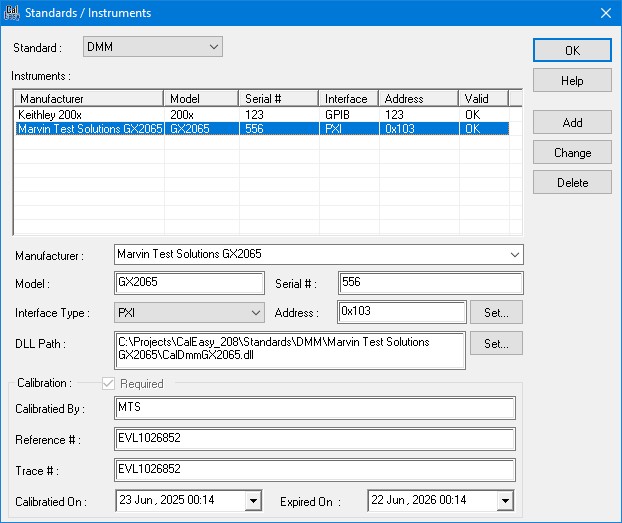
Use this window to define the standards instruments as required by the program to perform calibration or verification. Each entered instrument is recorded in the CalEasy.ini file so it can later be used from the Device Information window. CalEasy uses a fixed DLL functions set for each standard instrument type (i.e., DMM, PS, etc.). Standard Drivers section describes the DLL API requirements when implementing an instrument DLL driver that is required by CalEasy as part of an instrument calibration / verification operation.
The following screen capture shows the Standards / Instruments window:
Standards/Instruments window
Select the Standard type from the Standard dropdown list.
Add an instrument standard:
Add from built-in CalEasy standards library:
a. In the 'Manufacturer' dropdown, select the standard's Manufacturer and Model. The interface type, model, and DLL path will auto-populate.
Add standard not in the CalEasy built-in standards library:
a. Enter the Manufacturer, Model and Serial # for the instrument.
b. Select the Interface Type. When selecting GPIB or VXI make sure ATEasy GPIB or VXI interface is defined using ATEasy Interfaces application opened from the Tools menu.
c. Select the DLL path for the standard driver.
Add the Standard Instrument Information
1. Enter the instrument Address.
a. PXI enter the PXI slot # (in this example 4 for legacy slot 4 or 0x104 chassis 1 slot 4) as viewed from the as viewed from the PXI/PCI Explorer application that can opened from the Tools menu.
b. GPIBenter 0xBBPP00, where BB is the board number and PP is the primary address, for example 0x10A00 is GPIB board #1, Primary address 10. See the instrument interface Initialize function for more information regarding the instrument address.
c. VISA, enter the full VISA resources string as viewed by your VISA resource manager (i.e., ‘PXI1::28::INSTR’).
2. If calibration is required, check the Required checkbox and enter the calibration By, date (On) and Expiration date (Expired On). Also, enter the Reference and Trace #.
3. Click Add to add the instrument to the list.
Change an instrument:
1. Select the standard type from dropdown where the instrument is defined.
2. Select the instrument from the instruments list that you wish to change.
3. Modify the instrument information in the fields (manufacturer, model, etc. and the calibration group).
4. Click Change to update the instrument with the new data.
Delete an instrument:
1. Select the standard type from dropdown where the instrument is defined.
2. Select the instrument from the instruments list that you wish to change.
Click Delete to remove the instrument.
To add an instrument:
1. Select the Standard from the Standard list.
2. Enter the Manufacturer, Model and Serial # for the instrument.
3. Select the standard instrument Interface Type. When selecting GPIB or VXI make sure ATEasy GPIB or VXI interface is defined using ATEasy Interfaces application opened from the Tools menu.
4. Enter the instrument Address. This could be a string representing a number. For PXI standard instruments, you can enter the PXI slot # (in this example 4 for legacy slot 4 or 0x104 chassis 1 slot 4) as viewed from the as viewed from the PXI/PCI Explorer application that can opened from the Tools menu. For GPIB instrument. you can enter 0xBBPP00, where BB is the board number and PP is the primary address, for example 0x10A00 is GPIB board #1, Primary address 10. See the instrument interface Initialize function for more information regarding the instrument address. For VISA, enter the full VISA resources string as viewed by your VISA resource manager (i.e. ‘PXI1::28::INSTR’).
5. Select the DLL path for the standard driver.
6. If the Instrument requires calibration, check the Required checkbox and enter the calibration By, date (On) and Expiration date (Expired On). Also, enter the Reference and Trace #.
7. Click Add to add the instrument to the instruments list.
To change an instrument:
1. Select the standard type where the instrument is defined.
2. Select the instrument that you wish to change.
3. Modify the instrument information in the fields (manufacturer, model, etc. and the calibration group).
4. Click Change to update the instrument with the new data.
To delete an instrument:
1. Select the standard type where the instrument is defined.
2. Select the instrument that you wish to change.
3. Click Delete to remove the instrument.