
This section lists common issues encountered when configuring your calibration target or standards.
This issue occurs when trying to assign the address of the calibration target or when a failure occurs during calibration initialization indicating that the standard at the specified address was not found.
Calibration Address list empty
This most commonly occurs when the instrument address is not saved or does not match the value entered by the operator. Both issues can be resolved with the following steps.
1. Open PXI-PCI Explorer as an Administrator. If this application is already open as a non-Administrator, it will need to be exited first. This software can be access through CalEasy’s Tools menu.
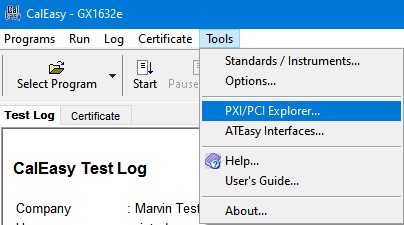
PXI/PCI Explorer item in the Tools menu
2. In PXI-PCI Explorer, click Scan for New Devices and Save to ensure your system information files, pxisys.ini and pxiesys.ini, are up to date.
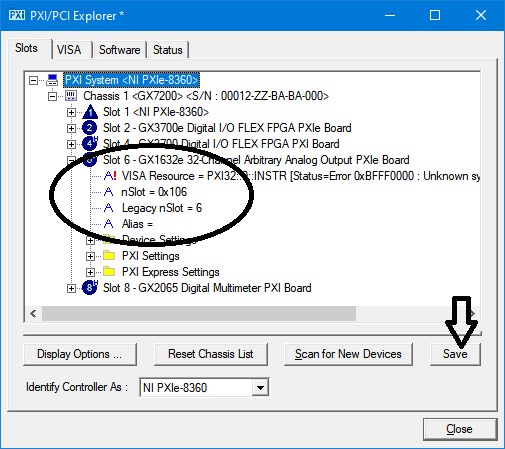
PXI/PCI Explorer slot information
3. If you are entering the address manually, expand the target instrument in the PXI System tree and review the nSlot parameter to ensure you are targeting the correct device.
GPIB instruments must be accessed through a GPIB interface instrument, and the interface board requires additional configuration before using it to operate the downstream device. If you are unable to communicate with your device using the GPIB address configured by the instrument, the most common reason is the interface is not configured, or it is configured incorrectly.
A solution to this problem is listed below using an NI USB to GPIB interface card. The process will differ slightly for GPIB interfaces created by other manufacturers.
1. Open the ATEasy Run-time Configuration applet. This software can be accessed through CalEasy’s Tools menu by clicking the ATEasy Interfaces item.
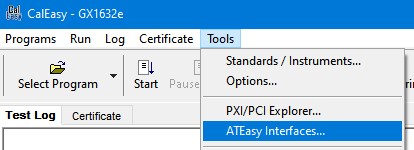
ATEasy Interfaces item in the Tools menu
2. In the ATEasy Run-time Configuration panel, locate the GPIB entry and click Add… to open the GPIB Interface configuration window.
3. In the GPIB Interface window, use the Driver drop-down list to select the manufacturer of your GPIB device.
4. In the GPIB Interface window, click Settings… to open the manufacturer-specific setting dialog.
5. In the Settings dialog, change the Interface number to match the number that is assigned by the manufacturer. NI Max or Agilent IO Suites are examples of software that provides this information for their own instruments.
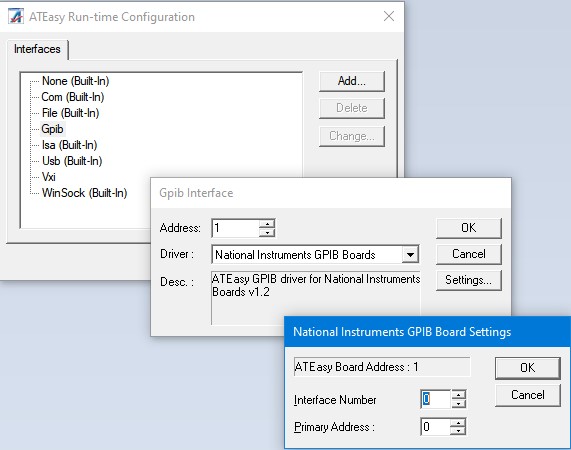
ATEasy Run-time Configuration settings windows