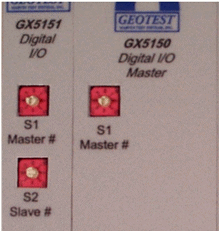
A DIO domain has a Master and Slave boards. In order to configure a DIO domain, each board needs to have a unique number so it can be identify by the software as part of the specified domain, i.e. all Slave boards that belongs to the same Master are in the same domain.
Master (GX5152) Has one selector switch on its front faceplate. The selector can be set to any number from 0 to 7 for a total of 8 different DIO domains.
Slave (GX5153) Have two selector switches on its front faceplate. The upper selector switch, designated as “S1 Master #” sets the Master domain that the Slave board belongs to. The lower selector switch designated as “S2 Slave #”, select the Slave number in that domain and can be set to any number from 1 to 7 for a total of 7 Slaves (number 0 is saved for the Master).
Master and Slave Switch Selectors
Timing cable needs to be installed only if there is at least one Slave board. The Timing cable provides timing and control signals to the Master and Slaves boards in the DIO domain. The Timing connection is Daisy Chain arrangement, similar to SCSI or IDE buses. The Timing cable is a flat cable with 20-pin header connectors. There are two Timing cable connectors on the Master board front panel, J7 and J8, with identical signals. Use J7 connector for Slave boards that are to the left of the Master, use J8 connector for Slave boards that are to the right of the Master. All 20-pin header connectors on the Timing cable should be connected.
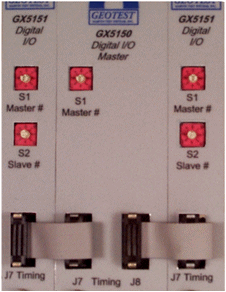
Timing Cable Interconnection
Skip this section if you are not adding or reconfiguring memory.
This section covers SIMMs (single in-line memory modules) used for data and control memory functions.
Note: DIO SIMM modules are specially made for Marvin Test Solutions in order to match the DIO’s unparallel high performance stand-alone capabilities. |
Note: DIO SIMM modules are specially made for Marvin Test Solutions in order to match the DIO’s unparallel high performance stand-alone capabilities.
GX515x DIO boards use nine SIMMs. SIMM9 (Error! Reference source not found.) is the Control Memory. SIMM1 – SIMM8 holds Data Memory. SIMM9 (Control) and SIMM1 are the minimum needed for board operation. The Control SIMM occupies the bottom slot labeled “SIMM 9”.
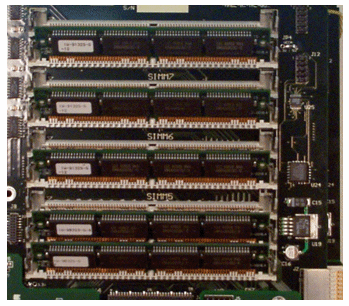
Memory Slots. Install SIMMs in the order specified
When upgrading memory, all DIO SIMMs must have the same size and speed specifications.
Domain performance is limited by the slowest and smallest memory on any DIO board. Therefore, the user is urged to compare test requirements against DIO board memory capabilities and upgrade DIO boards as necessary. This must be done before installing boards.
The following procedure explains how to install SIMMs on a DIO board. This procedure must be implemented with the DIO board removed from the PXI chassis and laying component side up on a suitable bench or work area. Observe safety precautions to avoid damage.
1. If populating memory with all new SIMMs, use the figure below.
2. If adding to existing memory, select SIMMs identical to the type already installed.
3. Install each SIMM after SIMM 9 (Control) into the lowest numbered vacant socket. Sockets are not located in sequential order, so check the board slot labeling.
4. Carefully set the SIMM over the socket to check orientation. Make certain the SIMM edge connector is aligned with the 72-pin socket. The off-center gap between pins should match. If necessary, rotate the SIMM to align with the socket.
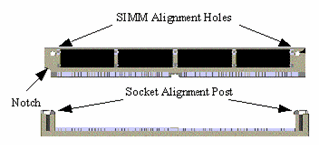
SIMM Module Installation
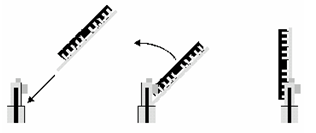
SIMM Module Installation
5. With the SIMM aligned and normal to the board, press firmly and rotate downward to a 45-degree angle until it snaps into place. When properly seated, the module “clicks” into place.
6. Assure that all SIMMs are seated correctly and that the metal locking tabs engage on both sides of the SIMM socket.
Note: (1) Never force a SIMM into a socket. It is keyed with a notch in the lower right corner. This notch prevents incorrect orientation. If there is difficulty inserting a SIMM, check the alignment. (2) Damage to SIMM modules and/or sockets may result if proper insertion guidelines are not observed. (3) SIMMs are extremely sensitive to static electricity. Follow instructions near the beginning of this chapter under Discharge Static Electricity Precautions. |
GX515x DIO memory options are listed in the table below:
SIMM Part
|
MemorySize & Speed |
Maximum Board Steps (8 SIMMs) |
||
8 Channels |
16 Channels |
32 Channels |
||
GT5006 |
256K, 50MHz |
8M |
4M |
2M |
GT5001 |
1MB, 50MHz |
32M |
16M |
8M |
GT5002 |
2MB, 50MHz |
64M |
32M |
16M |
GT5004-40 |
4MB, 40MHz |
128M |
64M |
32M |
Skip this section unless installing or changing an I/O Module.
I/O Module daughter cards provide special interface functionality between DIO and a UUT, including signal level conversion and high drive power for cables. GX515x DIO boards require an I/O Module to interface with a UUT. A user-selected module is factory installed and tested. For simple five-volt logic, use the GX5910 TTL I/O Module, which uses single-ended +5V logic. See the I-O Modules and Interfaces User's Guide information.
When a DIO board is ordered with an I/O Module, the module is factory installed and tested. Sometimes, however, it is necessary to change the I/O interface or replace one that has been damaged. An I/O Module can be ordered separately and includes mounting hardware.
To mount an I/O Module on a GX5152 (Master), do the following:
1. Remove front faceplate screws holding connectors J1 I/O, J2 I/O and J1 Timing Control.
2. Remove front faceplate by loosening two Phillips screws that are holding the PCB to the ejector handles (at both edges of the GX5152).
3. Remove the two screws that hold the Timing Control (GX5105) with the two risers and remove the Timing Control (GX5105) board.
4. Replace the I/O Module with the new one and press the two connectors, J9 and J10 in place.
5. Carefully insert the two connectors of the Timing Control (GX5105) to their place on the GX5152.
6. Attach the two screws that hold the Timing Control (GX5105) and the risers.
7. Attach the front faceplate two Phillips screws (at both edges of the PCB).
8. Attach screws holding connectors J1 I/O, J2 I/O and J1 Timing Control.
To mount an I/O Module on a GX5153 (Slave), do the following:
1. Remove front faceplate screws holding connectors J1 I/O, J2 I/O.
2. Remove front faceplate by loosening two Phillips screws that are holding the PCB to the ejector handles (at both edges of the PCB).
3. Remove the two screws holding the I/O Module.
4. Replace the I/O Module with the new one and press the two connectors, J9 and J10 in place.
5. Attach the two screws holding the I/O Module.
6. Attach the front faceplate two Phillips screws (at both edges of the PCB).
7. Attach screws holding connectors J1 I/O, J2 I/O.
Reattached the Timing Cable See Connecting Timing cable above. To dismount an I/O Module, reverse this procedure.
When the GX5105 Timing Module is factory installed, skip this procedure. Perform this procedure when replacing a Timing Module or converting a Slave board to a Master.
To reduce propagation delay, the Master should be located near the center of the domain. DIO Boards employ diodes to clip ringing rather than resistive terminators therefore cable termination is not necessary.
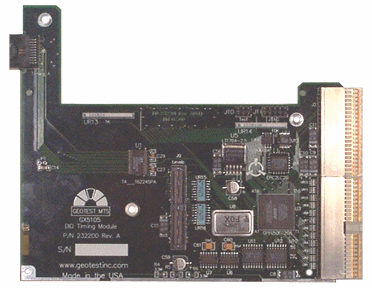
GX5105 Timing Control Board
The GX5105 mounting kit includes the card, mounting hardware and a two-foot UUT timing cable with VHD connectors.
To mount a GX5105 Timing Module, do the following:
1. Remove front faceplate screws holding connectors J1 I/O, J2 I/O.
2. If replacing an existing GX5105 Timing Module, remove front faceplate screws holding connectors J1 Timing Control.
3. Remove front faceplate by loosening two Phillips screws that are holding the PCB to the ejector handles (at both edges of the PCB).
4. Remove the two screws that hold the I/O Module (e.g. GX5910) to the GX5152.
5. Attach a ¾”riser to the GX5152 board between J7 and J8 using a Phillips screw.
6. Connect three 3/8” risers to the GX5105 using 3/8”Phillips screws (covering all screw holes on the GX5105).
7. Attach a GX5101 or any other GX5105 I/O Module to the GX5152.
8. Carefully insert the two connectors of the Timing Control (GX5105) to their place on the GX5152.
9. Attach the two Phillips screws on the GX5105 to the I/O Module (e.g. GX5910) risers.
10. If modifying a GX5153 (Slave) to a GX5152 (Master) replace front faceplate with a GX5152 front faceplate.
11. Attach the front faceplate two Phillips screws (at both edges of the PCB).
12. Attach front faceplate screws holding connectors J1 I/O, J2 I/O and J1 Timing Control.
The Timing Module is now mounted and ready to connect to Slave modules (see General Installation Procedures above).
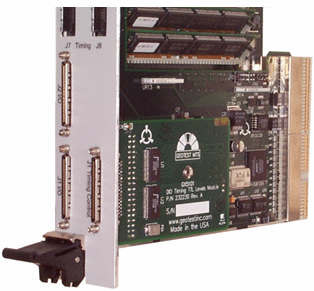
Timing Control Module Installation - Side View