To create a new vector file, select New in the File menu. A blank Vector View window opens.
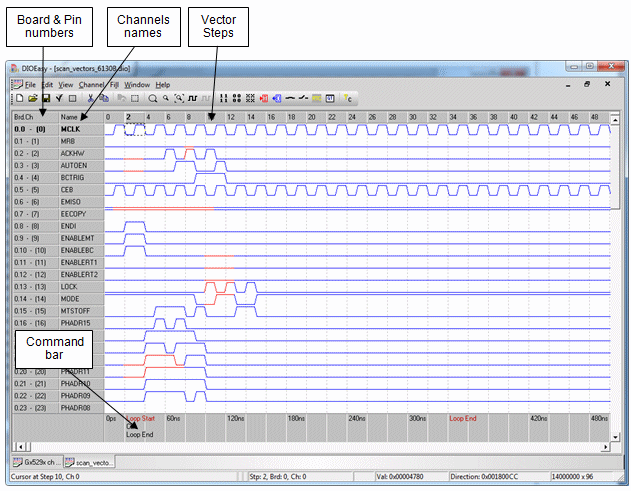
Key window items display in the figure below. They are explained below:
Vector View Window
Title Bar |
Displays the file name for the current window at the left. |
Vertical Scroll Bar |
Two scroll arrows and a scroll bar at the right. The arrows scroll window contents up or down one channel. |
Horizontal Scroll Bar |
Two scroll arrows and a scroll bar near the bottom. The arrows scroll the window contents one step right or left. |
Command Bar |
Displayed on the bottom of the Vector View, the command bar extends horizontally and displays commands and the step’s label entered in the Step Properties dialog. Each step also displays the steps relative time form the start of the vector based on the Vector’s frequency. Commands display at the step where they execute. |
Board Number, Board Channel Number,Domain Channel Number |
Channels display in the left-most column in the format Board Number.Board Chan Number - (Domain Channel Number). Board numbers range from 0 - 15 and board channels range from 0 up to 31. (board channels can also range from 0-7 or 0-16, depending on how width is set.) Domain channel numbers display in parentheses and range from 0 up to 512, depending on the number of DIO boards (up to 16) and channels per board. Domain channel numbers are handy for identifying user pin assignments. When a board is added, it is assigned to the next higher number. Board 0 is the Master |
Channel or Channel Names |
Displays in the second column. A column listing channel numbers (default) or user-assigned names. The mouse or arrow keys can select (all steps) in groups of channels. |
Steps |
A horizontal bar containing step numbers that display over each Vector View columns. |
Vector Cells |
The active portion of Vector View displays a grid pattern of channels and step data. Each vector cell contains a line representing 1, 0 or X (don’t care) levels. Line colors specify whether a channel is input (default red) or output (default green). The Options command (View menu) permits user color choices (discussed later.) |