 Properties… opens the File Properties dialog (the figure below) containing the General tab (default) and Setup tab. These windows display information about the current Vector View file. Some fields are editable depending on configuration.
 Properties… opens the File Properties dialog (the figure below) containing the General tab (default) and Setup tab. These windows display information about the current Vector View file. Some fields are editable depending on configuration.
Click OK to save properties and close. Click Apply to save changes and continue editing. Click Cancel (or the Esc key) to close without applying changes.
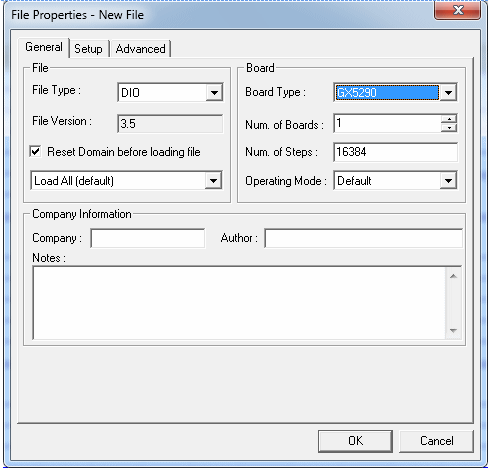
File Properties General Dialog Box
The General tabbed window (the figure below) contains three groups: File, Board and Company Information.
The following fields are available in the File group (* means not editable):
File Type* |
File header data. |
File Version* |
The version of DIOEasy that generated the current file. |
Reset Domain before loading file (Checkbox) |
Check will not reset all the boards in the domain before loading the new settings from the DIO file (default is to always reset the domain). |
File Load Options (Liast Box):
|
Check will only load the file data to the boards’ in the domain. |
The following fields are available in the Company Information group:
Company |
Optional company name or other information. |
Author |
Optional name of the author or person responsible. |
Notes |
Optional text. |
The following fields are available in the Board group:
Number of Boards |
The number of boards used by this vector file, from one to eight, that this vector file uses. The default is the last value or one. |
Board Type* |
Not editable. The vector’s board type. |
Number of Steps |
Number of steps that the vector file will have if the number of steps exceeds the board type available memory an error message displays. If there are fewer steps entered than in the current vector file, a message warns that the file will be truncated. |
The Setup tabbed window (the figure below) contains six groups: Setup, Trigger, External Events, Board Channels, Registers and Direction.
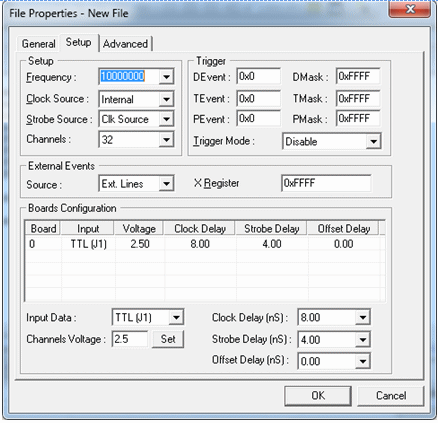
File Properties Setup Dialog Box
The following fields are available in the Setup group:
Frequency |
Enter or view the internal clock frequency in Hz (5 MHz default). This is not editable if Clock Source is set to EXTERNAL |
Ext Frequency |
Editable if Clock Source is set to PRG BY EXT. It displays the selected external clock frequency. If the combined external and internal frequencies are outside the allowed range, the nearest available clock frequency displays. |
Clock Source |
Select INTERNAL (default), PRG BY EXT or EXTERNAL. This sets the clock to an internally generated frequency, a frequency synchronized to an external reference clock, or an external clock source, respectively. |
Strobe Delay |
Strobe Delay in nanoseconds the clock lags the Strobe by the selected amount. |
Strobe Source |
This field can be selected only if Clock Source is set to EXTERNAL. Select either CLK SOURCE or EXT STROBE to strobe on the external clock or use another external source. |
The following fields are available in the Trigger group:
DEvent |
D Event Register displays as hex value, represents the state of the External Event Lines for a D Trigger Event to occur. |
TEvent |
T Event Register displays as hex value, represents the state of the External Event Lines for a T Trigger Event to occur. |
PEvent |
P Event Register displays as hex value, represents the state of the External Event Lines for a P Pause Event to occur. |
DMask |
Four hex characters in the D Mask Register. 0xFFFF enables all bits. A zero value will set the bit condition as true. A 0x0000 will cause the D event to always to be true. |
TMask |
Four hex characters in the T Mask Register. 0xFFFF enables all bits. A zero value will set the bit condition as true. A 0x0000 will cause the T event to always to be true. |
PMask |
Four hex characters in the P Mask Register. 0xFFFF enables all bits. A zero value will set the bit condition as true. A 0x0000 will cause the T event to always to be true. |
Trigger Mode |
Select DISABLE (default), or select D LEVEL, T LEVEL, DT LEVEL or TD LEVEL to enable Trigger events based upon External Event Inputs or X Bus words. In addition, the Pause or P Event is always active whenever a Trigger Mode selection is other than DISABLE. |
The following fields are available in the External Events group:
Source |
Use radio buttons to select external lines or internal (X register) event simulation. |
X Register |
Enter a hex number into the X Register. This is used for simulation of an external event. |
The following fields are available in the Board Channels group for a GX5150/GX5280/ GX5290 file, but are not available for a GX5050 file:
Board Number |
Select the number of the board you want to specify active channels for. |
Number of Channels |
The number of channels (channels) to be available (width, the Vector step capacity (Depth) scales inversely. |
The Channels settings tabbed window (see the figure below) contains six groups: Setup, Trigger, External Events, Board Channels, Registers and Direction.
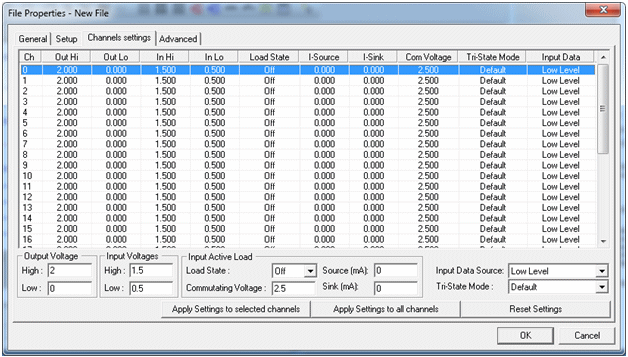
File Properties Gx5295 Channels Settings
Output Voltage High Group:
High Displays/set the channel output high voltage, voltage can be set from -2V to +7.0V and need to be higher than the output low voltage settings.
Low Displays/set the channel output low voltage, voltage can be set from -2V to +7.0V and need to be less than the output high voltage settings.
Input Voltage High Group:
High Displays/set the channel input high threshold voltage, voltage can be set from -2V to +7.0V and need to be higher than the input low threshold voltage settings.
Low Displays/set the channel input low threshold voltage, voltage can be set from -2V to +7.0V and need to be less than the input high threshold voltage settings.
Input Active Load Group:
Load State Displays/set the channel input active load state; the load state can be turned On or Off
Commutating voltage Displays/set the channel input active load sink and source currents commutating voltages value, voltage can be set from --2V to +7V.
Source (mA) Displays/set the channel input active load source current settings; source current can be set form 0 to 24mA.
Sink (mA) Displays/set the channel input active load sink current settings; sink current can be set form 0 to 24mA.
Input Data Source Displays/set the channel input data comparator source, Input data comparator can be as follows:\n\rLow Threshold Comparator: data will be the result of the comparison done on the input data by the low threshold comparator, logic levels are as follows: \n\r\tLogic Low: whenever the input signal is below the low comparator threshold\n\r\tLogic High: whenever the input signal is above the low comparator threshold\n\r\n\rHigh Threshold Comparator: data will be the result of the comparison done on the input data by the high threshold comparator, logic levels are as follows: \n\r\tLogic Low: whenever the input signal is below the high comparator threshold. \n\r\tLogic High: whenever the input signal is above the high comparator threshold.