You can open the Import File Dialog from DIOEasy File, Import File... menu.
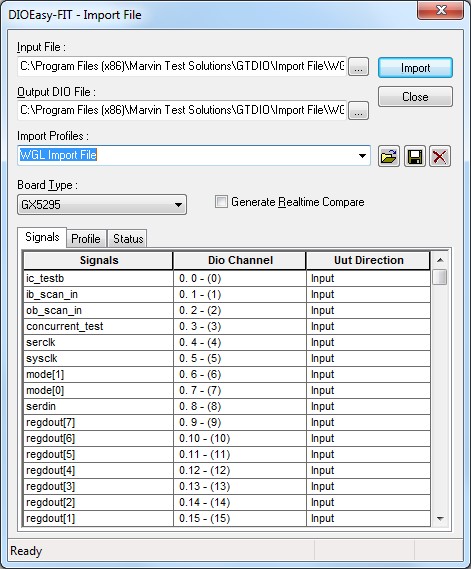
The following image shows the Import dialog after selecting a WGL file as the Input File:
Import File Dialog - WGL File
The following controls are available:
Input
file (Edit Box): The user can set the
Input Waveform Generation Language source file by typing its full path
and name or by clicking on the  button
that opens the file open dialog.
button
that opens the file open dialog.
Output DIO File Name: (Edit Box): The output DIO file name field will be automatically will be filled with the same file name and location but with the DIO file extension. The user can than rename or change the location of the output DIO file.
Import Profiles (drop list): The Import Profiles shows a list pf profile teach contains settings such as signal maps and import variables settings used by the import. The profiles are saved to your system registry and are used when you need to import several files with similar signal map and settings. The Profile can be viewed in the Profile tab which can be edited. The user can copy the profile text and pass it to the GTDIOFileImport API (see the function reference chapter for details). You can type a new profile name in the drop list and click the Save button to create a new profile.
Open Profile File (button): this button is used to open a text file containing the profile text as shown in the Profile tab. You can create a profile file by copying the text displayed in the profile tab and pasting it to a text editor and saving it to a text file.
 Save Import Profiles (button): Typing a
profile name and clicking on the save button saves the profile to the
system registry under profile name. The next time the import dialog is
opened the Import Profiles drop list will be populated with all saved
profiles.
Save Import Profiles (button): Typing a
profile name and clicking on the save button saves the profile to the
system registry under profile name. The next time the import dialog is
opened the Import Profiles drop list will be populated with all saved
profiles.
 Delete Import
Profiles (button): Clicking on the delete button deletes the selected
import profile from the registry.
Delete Import
Profiles (button): Clicking on the delete button deletes the selected
import profile from the registry.
Board Type (List Box): Sets the target supported DIO board type.
Import (Button): Clicking on this button will start the file import process. When importing a file, a progress bar will appear at the bottom of the dialog and in the Status tab.
Close (Button): Closes the dialog.
The Signals tab displays rows each showing the import file signal name, the associated DIO channel and the direction of the UUT/DUT signal.
Signals column (List View): Displays the imported file signals name list. The user can change any of the signals connections to a specified channel by selecting any signal and changing it to another signal.
Dio Channel column:(List View): Displays the import file signals to channels list. The user can remap the physical channel connection by clicking on the channels name and selecting a different DIO channel form the list or select Unused if the signal is not needed and will be ignored during the import. The DIO Channels are displayed in the format b.c –(#), where b is the board number in the DIO domain (1 based), c is the channel number and # is the domain channel number. Channels are always 0 based.
Direction column (List View): Displays the imported file signals direction. When importing VCD or EVCD file the user can set the direction since the files do not specify signal direction. Direction can be Input, Output or Bidir (bi-direction, input and output).
The Profile tab displays the import settings associated with the current Import Profile name drop list. The profiles are saved to your system registry and can be copied for use on a different system or when using the GTDIOFileImport API so you can perform batch importing for several vector files with the same pin map or settings.
The profile is a text editor displaying two sections:
1. The [Signals] section that contains a list of DIO channels and the associated import file signal, followed by direction of the signal.
2. The [Variables] section contains pre-defined variables and their values. Each variables is preceded with a comment (start with #) explaining the usage of the variable. Variables are used to modify the behavior of the import process or outcome. This section also contains variables that were defined inside the imported file. These variables are listed under the #user defined variables comment. You must set these variables values by typing the value in the editor before importing the file.
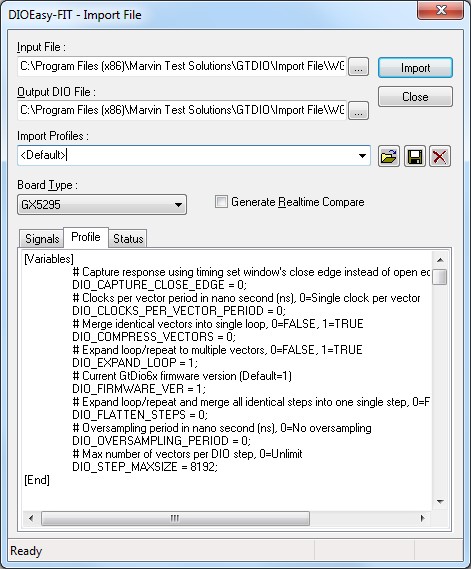
File Import – Profile Tab
The status tab displays the progress of the import process. The import will try to match the patterns and timing settings to the DIO Board limitation. As part of the process seal file iterations need to be performed to find the best import setting that will result in the best vector file that matches the imported vector file. This process may take a while and the status tab will show the progress and the setting used in addition to warnings that were found because of the DIO board limitation.
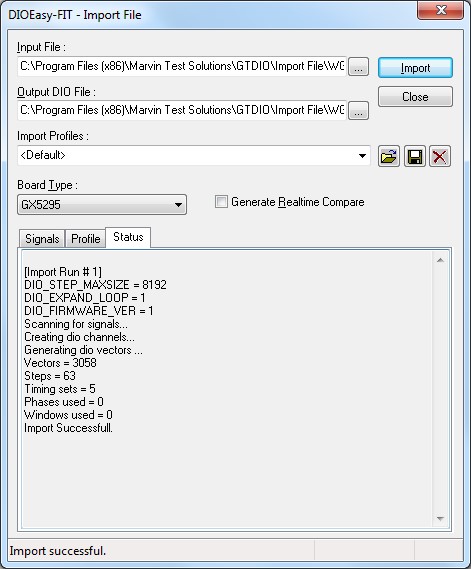
File Import – Status Tab