Adding Data and Controlling GC5050/GX5050 I/O Direction
Channels 0-3, which are at logic “one” for most steps, can be set to all ones. To do that, select Channels 0-3 (click ‘CLK’ and drag to ‘WR’), then click the ‘One’  toolbar button. The step channels now display a ‘1’ level. Click the ‘Output’
  toolbar button. This designates the direction of all channels in the group (channels 0-7) as output. (Note: Input and Output buttons for GX5150 DIO files are not available). For this example, channels must be in numerical order.
Continue the process. Select channels 6-7, but this time, click the ‘Zeros’  toolbar button.
Continuing, fill channels 8-19 with "Don’t Care" by clicking the "Don’t Care"  toolbar button. This displays a half-level dashed line. Designate Channels 8-9 as inputs by clicking the “Input”
  toolbar button. Channels 8 -15 are now designated inputs. Similarly, designate Channels 16 - 19 as outputs
  . Channels 16 - 23 are all outputs now. The figure below shows Vector View after all these operations are completed.
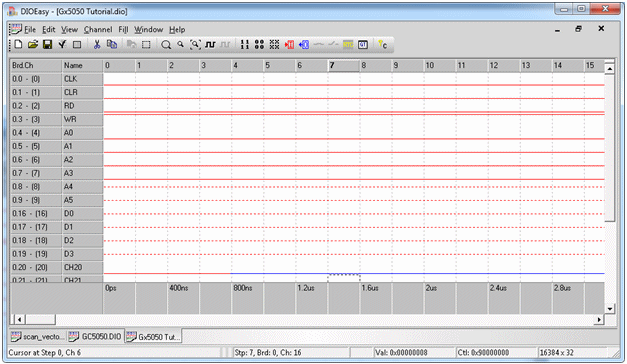
Vector View after the Basic Steps
|
Note: Commands introduced here can also be implemented using the Value selection in the Fill menu. See "Using DIOEasy".
|
To change Steps 12 and 13 to ‘0’ in the CLK Channel (Channel 0), select Channel 0, Step 12 and click the right mouse button until the step is set to zero. Repeat for Step 13.