This section demonstrates step by step how to edit the vector file in order to create waveforms and commands that control waveforms in the RUN mode.
The UUT can select two waveforms. The UUT should be able to switch between the two waveforms every time the DIO completes a waveform. We will first set the data for the triangular waveform.
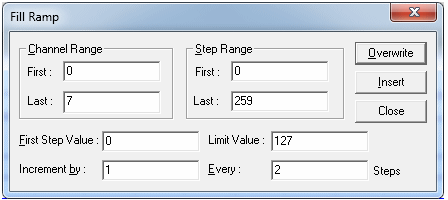
Click the Fill menu, and then Ramp. The Fill Ramp dialog box now displays. Each ramp value needs to be on the output lines before we can clock it in. The clock alternates every step. The ramp increments on the positive-going clock transition, incrementing every second step. Each value must remain stationary for one clock interval. While the clock is active (high) in the second step, the next ramp value is set up.
The last range step value is now calculated. The total number of DAC values is 128 (0 to 127). Since each value needs two steps and there is a 4-step offset, the last step value is 128*2+4 -1=259. Set the Fill Ramp dialog values that display in the figure below. Click Overwrite! to enter the steps.
Using Fill Ramp to Generate the Waveform
To complete the triangular waveform, a negative ramp is needed. Again, click the Fill menu and select Ramp to display the Fill Ramp dialog. To create a negative ramp, set the First Step Value to 126 (0x7E), so that peak value will appear only once in vector steps 258-259. There are a total of 127 DAC values, 0 to 126, and 127*2=254 steps. Set First Step Value to 126 and set "Increment by" to –1. This sets up a down-sloping ramp. Set the other values as displayed in the figure below.
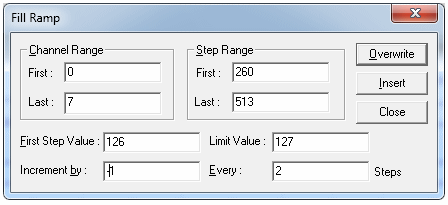
Using Fill Ramp to Generate Waveform Values