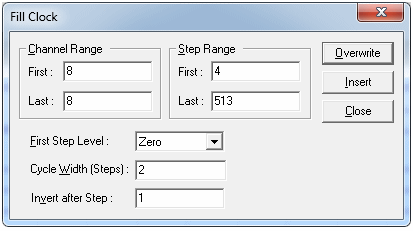
To clock data into the DAC, we need to fill the Clk channel with appropriate clock values.
Click the Fill menu, then Ramp. The Fill Clock dialog box displays. In our case, DAC values change every second step. In the first step, the data is placed on the bus. In the second step, the data is clocked to the DAC. The total number of steps to fill was calculated earlier. Set the values as displayed in the figure below.
Using Fill Clock to Generate the Clock
BusReq is usually set to inactive (high). It is active low, but we need to first set it high to assure we output in a known state. Click the Fill menu and select Fill Value. Set parameters as displayed in the figure below, then click Overwrite!
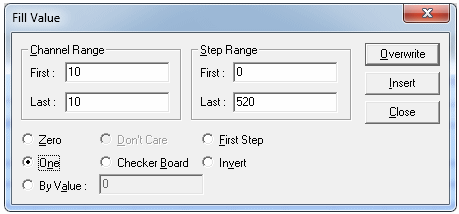
Using Fill Value to Set the BusReq Line
In Vector View select Step 2, Channel 10. In the Tool Bar click  to set that cell to zero.
To continuously output waveforms in the RUN state, Registers A and B are used to control operations. A Jump command is added at the last step of each waveform.
For the first waveform, the jump is conditional. We want to jump to the beginning of the waveform at step 4. The address is loaded in Register B. The jump will be to the address in Register B on condition that External Event line 0 matches bit 0 of Register D. For the second waveform, the jump is unconditional because it’s the end of both waveforms. We jump to the predefined address in Register B, Step 4, at the beginning of the waveform.
Double-click the Command Property area under Step 258. The “Command Property dialog appears. Apply the settings displayed in the figure below and press Enter.
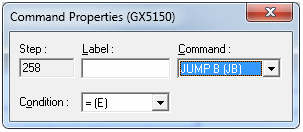
Using Command Properties to Set a Conditional Jump
The second jump is unconditional and occurs at Step 512 in the last step of the second waveform.
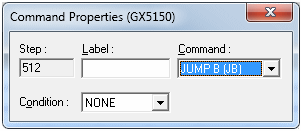
Using Command Properties to Set an Unconditional Jump
To stop the program, program an external unconditional jump on Register A. Use the user I/O Control located on J9, Pin 10. A low on this pin causes an immediate jump to the address loaded in Register A.
Registers A and B can be set in the Registers group located in the File Properties dialog box, under the Setup tab. To open the File Properties dialog box, click File then Properties… If the DIO file is saved after setting properties, the next time the vector is loaded the registers will preload with the saved values.
In order to insure proper program termination we will insert to step 520 HALT command, as shown in the figure below.
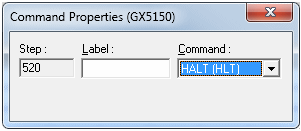
Using Command Properties to Insert HALT Command