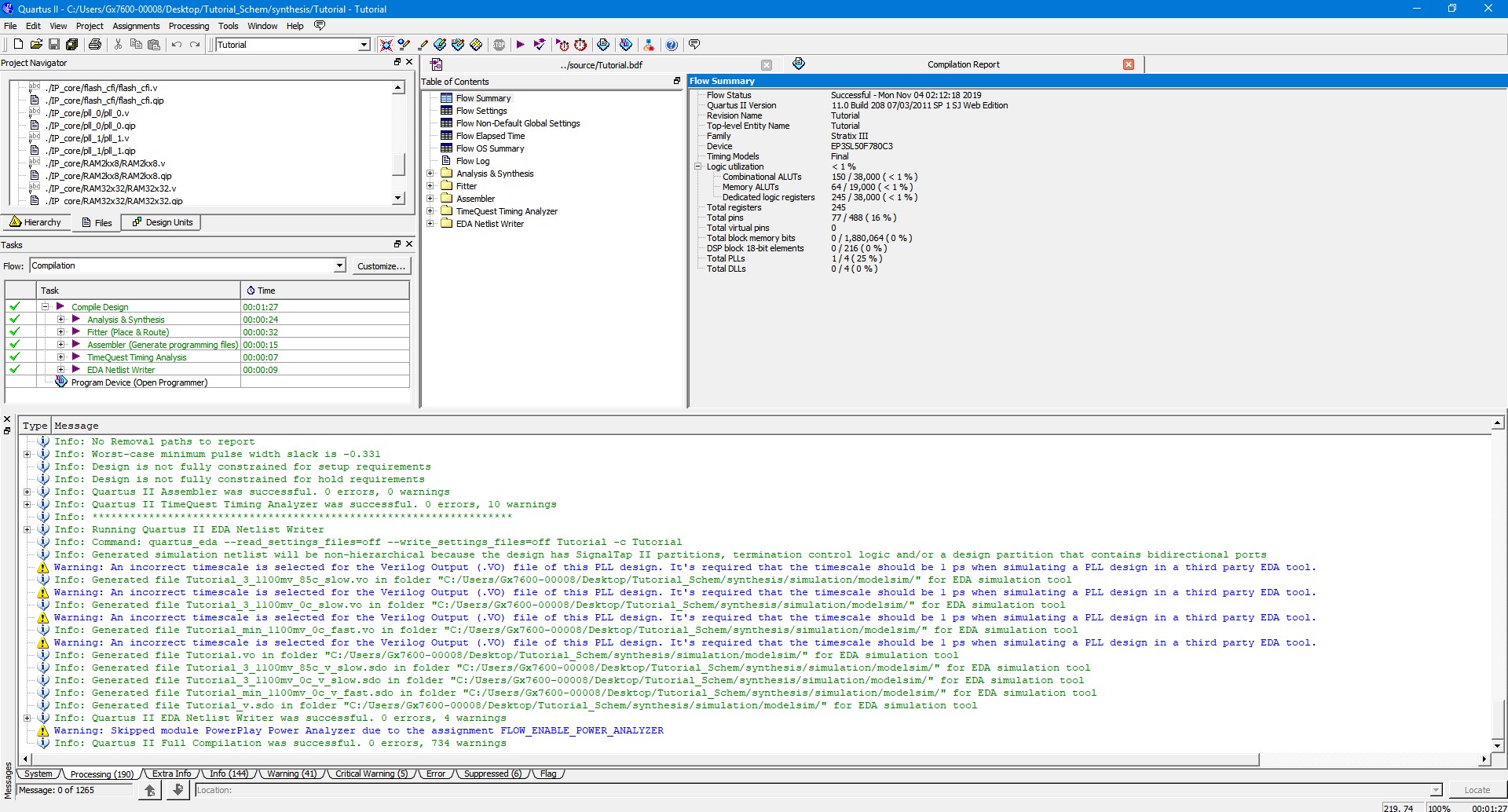
Click on Processing menu tab and choose Start Compilation to start the compilation process for the example project. After the process has run successfully, you should now see in Quartus II something similar to the figure below. The green check marks indicate success and the red X indicates failure. The process will succeed only when there is no error. There may or may not be any warning. If there is any warning, make sure that it is OK for the design before moving forward. For this tutorial design, ignore all warnings.
The SVF file will be generated after the project compilation has finished. The Compilation Task window will show green check marks next to each major task to indicate completion.
In order to generate RPD file go to File, Convert Programming Files …
Select Raw Programming Data File (.rpd) as the Programming file type and tutorial_design_top.rpd as the File Name. Click on the Add File button and select tutorial_design_top.pof. The .pof file should now appear below the POF Data node as shown below. Finally, click the Generate button to create the RPD file.
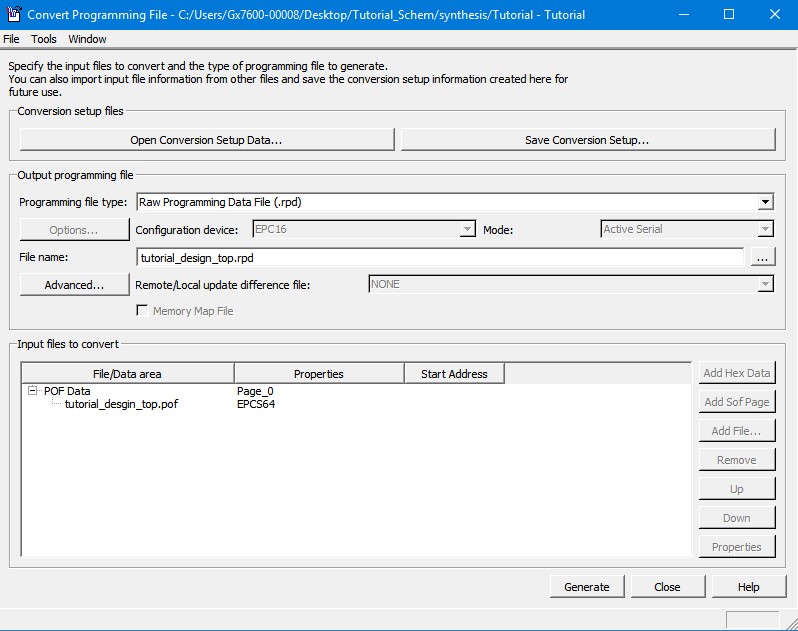
Convert Programming Files Dialog Box