Now that the design has been completed, compiled and loaded into the GX3700, we can move on to the testing.
There are two ways to access the FPGA, either through the software front panel or through the driver API DLL. We will demonstrate the programming method using ATEasy to access the driver API DLL.
The software front panel will be used to test Phase 1 of the design which adds two 32-bit numbers together. Click on the I/O Tab to get started. The Adder phase is controlled through the FPGA Register space.
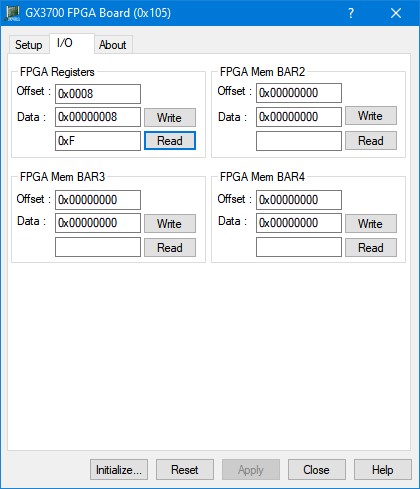
Offset 0x0 points to the first 32-bit number that will be summed and offset 0x4 points to the second 32-bit number that will be summed. Write values to both these locations.
The sum can be obtained by reading the 32-bit value at offset 0x8. Verify that the correct sum is read back as shown in figure Compilation Tools and Status.
Using the Software Front Panel to read back the Sum
The software front panel will once again be used to test Phase 2 of the design. This part of the design uses a Mux to select between the PCI Clock and the 10 Mhz reference clock. The selected clock is output to I/O Channel 63 which is located on pin 31 on the Flex I/O J2 connector of the GX3700. The Mux is controlled through the FPGA Register space.
Writing a 0x0 to offset 0xC will route the PCI/PCIe Clock signal to I/O Channel 63. Writing 0x1 to the same offset will route the 10 Mhz clock to this same channel. Try switching between both values while monitoring pin 31 of J2 with an oscilloscope. You should see the appropriate clock signals.
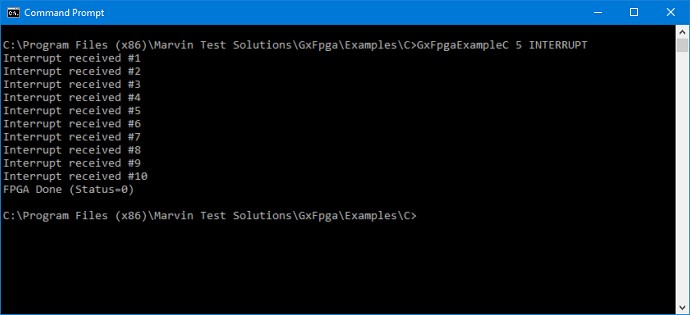
We can check to see if the interrupts are being generated by using the examples GxFpgaExampleC and GxFpgaExampleCS found in the folders “Marvin Test Solutions\GxFpga\Examples\C” and “Marvin Test Solutions\GxFpga\Examples\CS” respectively. From the console, you can simply type “GxFpgaExampleC” and press enter to see a complete listing of arguments and their usage. To test if interrupts are being generated on a Gx3700 placed in slot 5 of a chassis, we could use the command “GxFpgaExampleC 5 INTERRUPT” as shown below.
Command Prompt